> For the complete documentation index, see [llms.txt](https://docs.freeflysystems.com/llms.txt). Markdown versions of documentation pages are available by appending `.md` to page URLs; this page is available as [Markdown](https://docs.freeflysystems.com/ecosystem/payloads/wiris-pro-thermal/operating-handbook/downloading-media-example-output.md).
# Downloading Media/Example Output
## Example Output
Click the link below to download sample images in all possible formats.
{% file src="/files/9iYA84xWBSJsVs0ZDoPh" %}
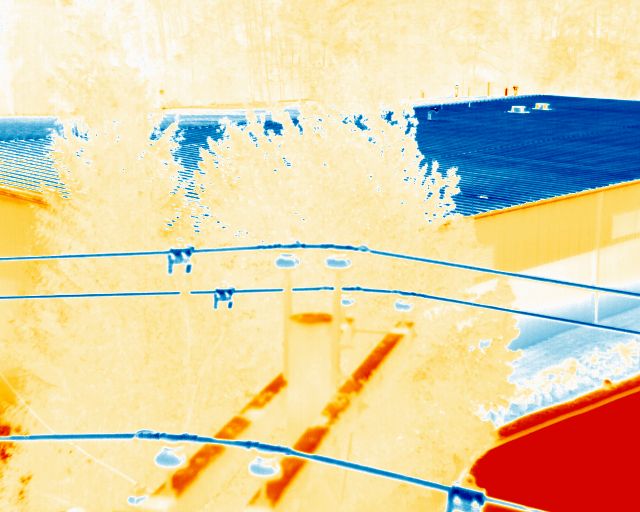
Wiris Pro IR Image
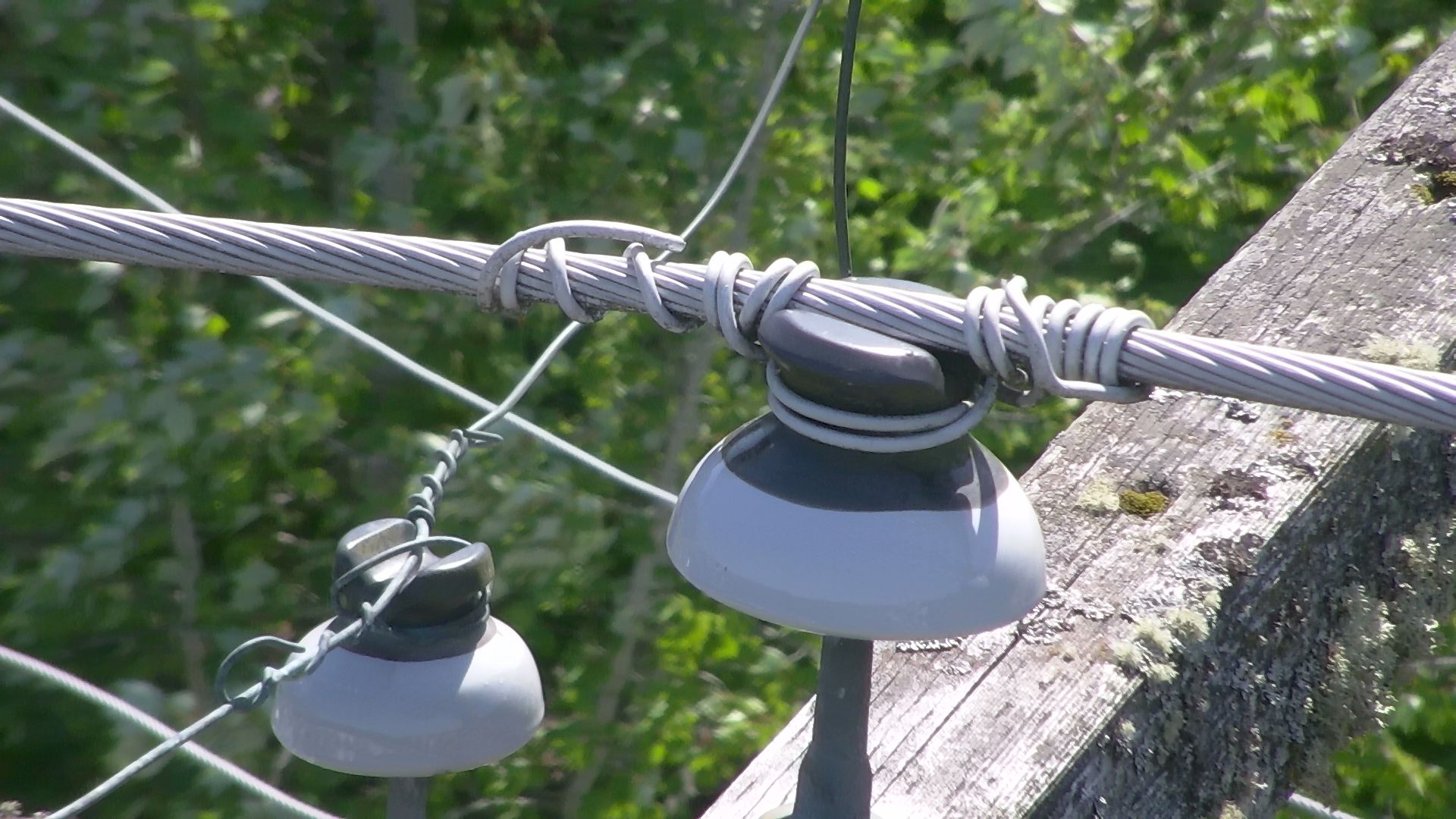
Wiris Pro EO image at 10x Zoom
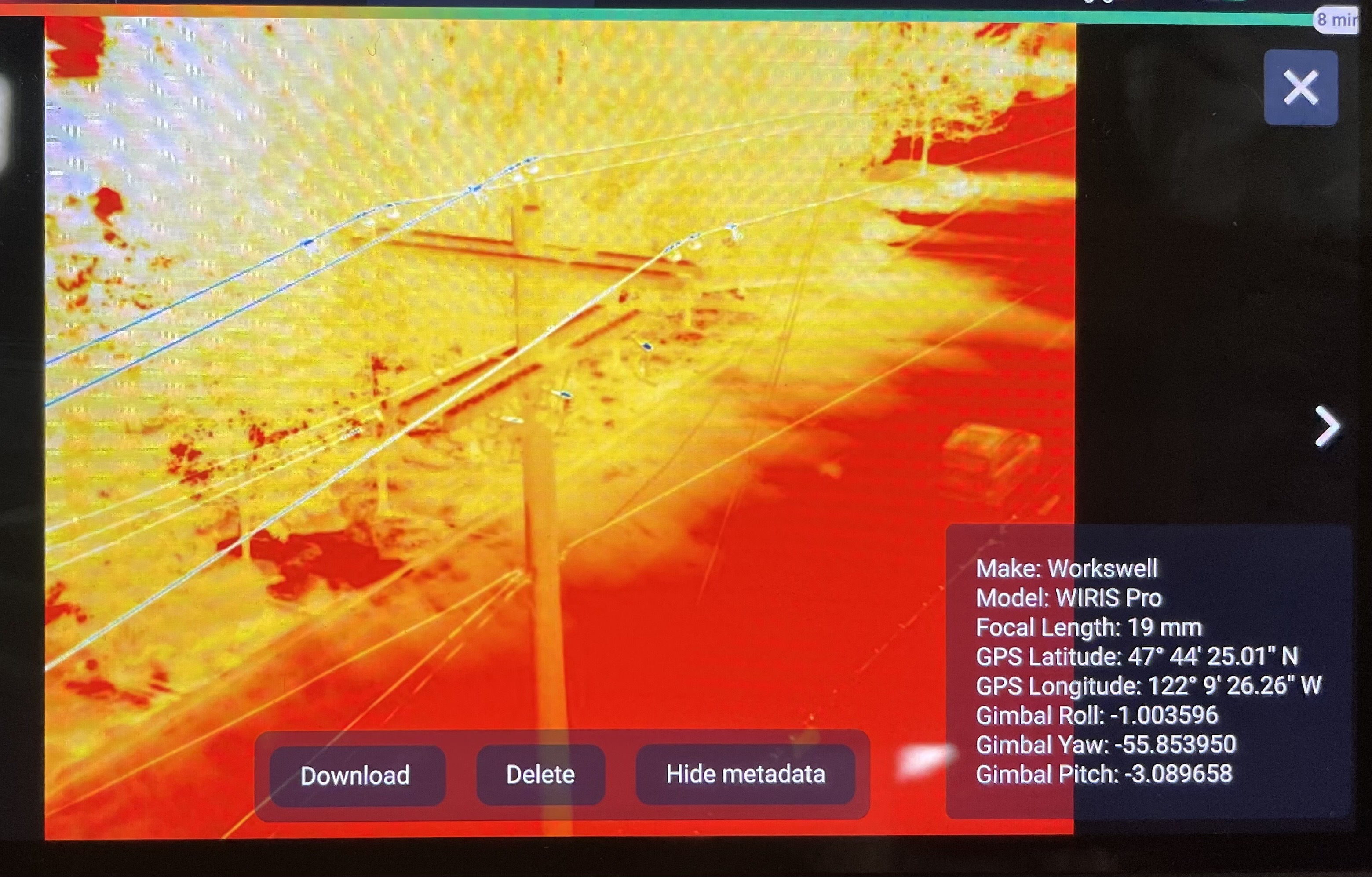
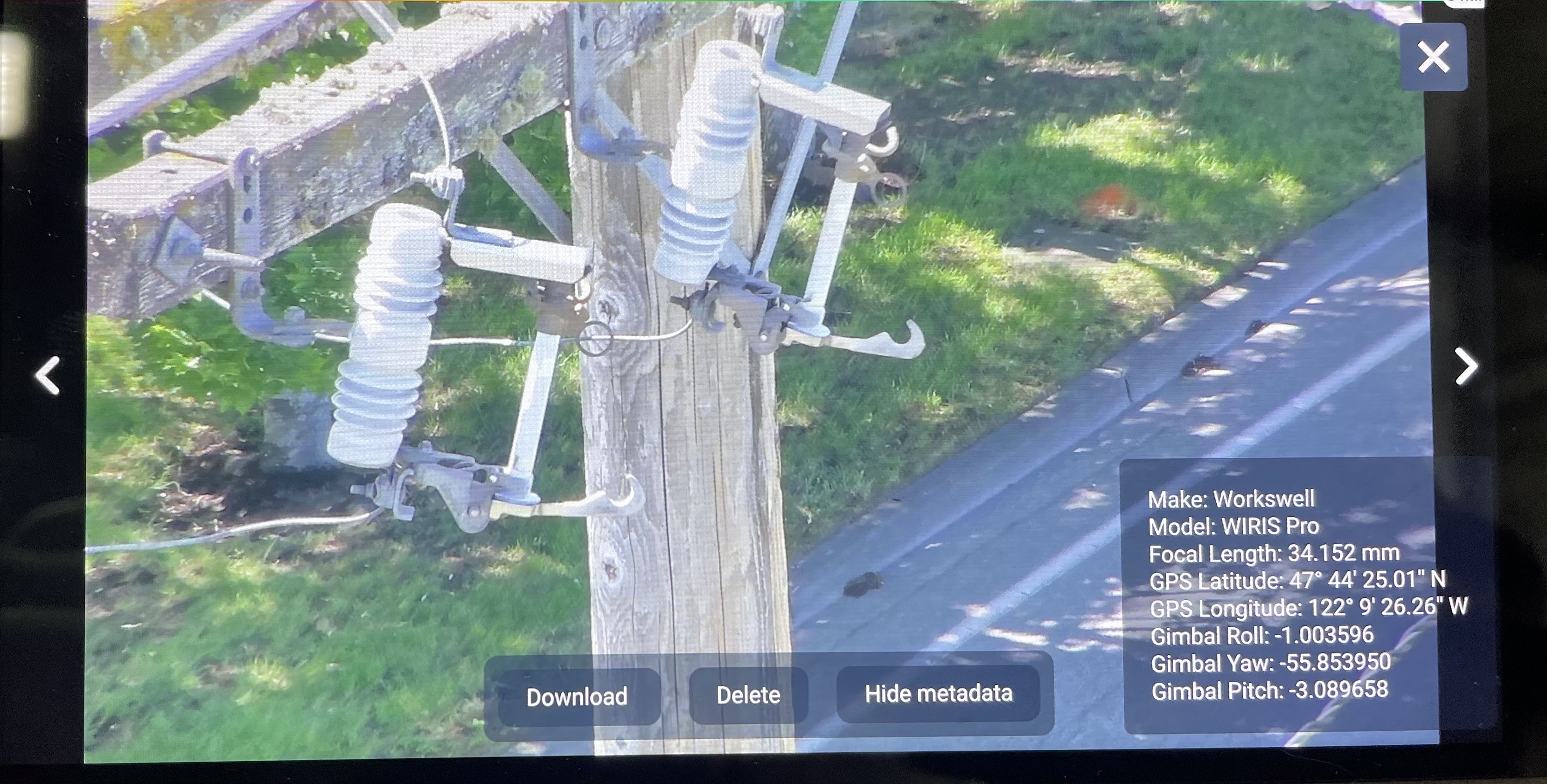
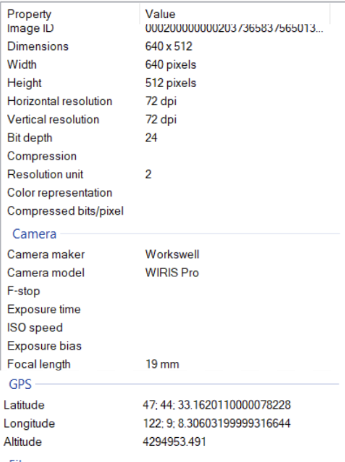
When images are saved to the USB drive, they are geotagged with the GPS lat. and long. Gimbal attitude is visible in the gallery, but is not currently included in the image meta data.
These are viewable in the gallery or in the metadata of the image on a PC
Wiris Pro IR image metadata
Wiris Pro EO image metadata
## Viewing Media
Images can be previewed in the gallery in AMC during or after a flight.
Images from the EO camera can be saved in JPEG or TIFF format, and can be opened in most photo software. EO Video is saved as an MP4 file, IR video as a .AVI file.
Images from the IR camera can be saved as a Radiometric JPEG or TIFF. Video can be saved as Thermal Encoded or as Radiometric video. Workswell ThermoLab software is required to view thermal video shot in Radiometric mode, and can be downloaded here:
{% embed url="" %}
### USB Drive
* To download photos from the USB drive, remove it from Astro and insert it into a computer. Then, move the files off
### Wiris Pro SSD
{% hint style="danger" %}
**Do NOT format the SSD of the Wiris Pro when connected to a PC. This can brick the camera and will require it being sent back for repair.**
{% endhint %}
* To remove media stored on the SSD, first power the Wiris Pro Payload on the aircraft. Then connect a cable to the micro-USB port on the side of the Wiris Pro. The drive should appear on a computer as ‘Wiris SSD’, with the files organized in folders by date.
* Drag the selected media off the Wiris SSD folder on to your computer.
* Right-click and 'Eject' the Wiris drive, then power off the drone and gimbal
{% hint style="info" %}
Make sure to eject the Wiris drive from you computer before unplugging the cable. Power cycle the aircraft and gimbal before capturing any additional video or photos.
{% endhint %}
{% hint style="info" %}
The video feed may stop after disconnecting from a PC. This is normal, the video will resume after a reboot of the aircraft
{% endhint %}
{% hint style="danger" %}
**Do NOT format the SSD of the Wiris Pro when connected to a PC. This can brick the camera and will require it being sent back for repair.**The formatting option for the SSD of the Wiris Pro can be found in the camera settings under Advanced SSD Options - Format SSD
{% endhint %}
{% content-ref url="/pages/mJQaCa6wu1mOisP3GlZH" %}
[Camera Software](/ecosystem/payloads/wiris-pro-thermal/camera-software.md)
{% endcontent-ref %}
---
# Agent Instructions
This documentation is published with GitBook. GitBook is the documentation platform designed so that both humans and AI agents can read, navigate, and reason over technical content effectively. Learn more at gitbook.com.
## Querying This Documentation
If you need additional information that is not directly available in this page, you can query the documentation by asking a question.
Perform an HTTP GET request on the following URL with the `ask` and `goal` query parameters:
```
GET https://docs.freeflysystems.com/ecosystem/payloads/wiris-pro-thermal/operating-handbook/downloading-media-example-output.md?ask=&goal=
```
`ask` is the immediate question: it should be specific, self-contained, and written in natural language.
`goal` is what the user is ultimately trying to achieve, the reason they need the answer. Sharing it helps GitBook give you a better, more relevant answer. A goal is most helpful when it describes the outcome the user wants rather than restating the question. For example, with `ask=how do I create an API token`, a goal like `automate deployments from our CI pipeline` lets GitBook tailor the answer to that use case.
The response will contain a direct answer to the question and relevant excerpts and sources from the documentation.
Use this mechanism when the answer is not explicitly present in the current page, you need clarification or additional context, or you want to retrieve related documentation sections.