> For the complete documentation index, see [llms.txt](https://docs.freeflysystems.com/llms.txt). Markdown versions of documentation pages are available by appending `.md` to page URLs; this page is available as [Markdown](https://docs.freeflysystems.com/ecosystem/payloads/payload-maintenance/gimbal-firmware.md).
# Gimbal Firmware
## Latest gimbal firmware
| | LR1 Payload | OGI Payload | Wiris Pro Payload | A7R4 Payload |
| ------------------------------- | ------------- | ------------- | ----------------- | ------------ |
| **Astro Firmware 1.6 or later** | v2.3.1 | v2.2.0 | v1.7.2 | v1.7.2 |
| **Astro Firmware 1.5 or older** | Not supported | Not supported | v1.6.2 | v1.6.2 |
{% hint style="info" %}
Make sure to update Astro and AMC to the latest FW too!
{% endhint %}
## How to check gimbal firmware
Note: Payload must be connected to Astro to check version number
Older gimbal software versions are displayed as Model Mongoose. You will need to download the latest gimbal firmware that matches your payload type (Wiris Pro, LR1, A7R4, etc.) even if it is below version 2.0.0
Gimbal firmware versions are also included in gimbal log files
{% content-ref url="/pages/7KRKTrmxO8vvEPKbsBvu" %}
[Gimbal Logs](/ecosystem/payloads/payload-maintenance/gimbal-logs.md)
{% endcontent-ref %}
## Gimbal firmware release notes
### v2.3.1
* New: Gimbal will now flip itself to the correct orientation on startup if booted inverted
* Fix: Gimbal heading doesn't change when aircraft position mode becomes valid
* Change: Gimbal heading follows aircraft heading closer in Position and Mission Mode
* Change: Logging updates
{% file src="/files/BHqbyHy6fKnYOqdyZKi8" %}
### v2.2.1
* Maintenance release to support new accelerometer calibration
{% file src="/files/tAyqEDt2AKrLmEySP5pr" %}
### v2.2.0
* Change: Increased upward tilt limit from +30 degrees --> +90 degrees
* New: Added support for Skyview/Top mount
* New: Added support for Sony FE 50mm F2.5 G lens
{% hint style="info" %}
Support for Sony FE 50mm F2.5 G lens requires Astro Firmware 2.0.22 or later as well
{% endhint %}
{% file src="/files/xwtGeOPlBQcq01L3u13c" %}
{% file src="/files/F16aMdZFRigVoy4kEOu3" %}
### v2.1.0
* Initial Release for OGI Payload
* Updated 75mm tuning for LR1 on Astro with large motors
{% file src="/files/7cf8iVQj3EDSaw0cZtJP" %}
{% file src="/files/D7F4rdHmc5E9jkhRLipC" %}
### v2.0.2
* Initial release for LR1 Payload
{% file src="/files/VqrNFGFAKYfGBqWi4DeS" %}
### v1.7.2
{% file src="/files/n5Qw4WHSrQDVxqOp3Fzg" %}
{% file src="/files/9MoaXszq3YmxP0YOYgwO" %}
* Change: baud rate to enable reliable parameter forwarding
* Bugfix: now handles mavlink forwarding turned on
This is a required firmware update for Astro's running firmware 1.6 or later. This gimbal firmware will only work on Astro FW 1.6 and later
### v1.6.2
{% file src="/files/JIB7AQgPda0Kt1xZPV1s" %}
{% file src="/files/kmgongIVh26iSq1bmbkw" %}
* **Bugfix: Fixed the SD card corruption issue, preventing the gimbal from powering on**
* New: Added tilt limits to mongoose of -90 and +30 degrees tilt
* Improvements:
* Improved heading control
* Calibration and process updates to improve attitude performance
* Added GPS date time as supplied by Astro to log
### v1.0.1
* Initial Release
## Updating Gimbal Software
1. Download the firmware package.
* Extract the .zip folder contents.
* Open the extracted folder- the top level folder that you will need to copy onto the gimbal will be called "freefly". Do not copy the folder that states the firmware version.
2. To upgrade Gimbal firmware, connect the gimbal to a laptop using a USB-C cable.
* The USB-C connector is located on the Smart Dovetail of the gimbal
* Ensure the gimbal is not powered by the aircraft
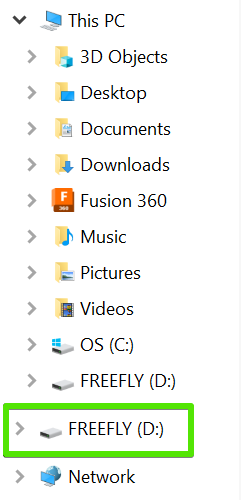
* The gimbal will show up on the computer as an external drive called "FREEFLY"
3. Open that drive and you will see a folder named "freefly". This is the current firmware file that you need to replace.
* Delete this folder and replace it with the new firmware folder "freefly' that you downloaded in Step 1
4. Remove the USB-C cable from the gimbal and connect the gimbal to an Astro using the Smart Dovetail to power on the gimbal.
5. Insert 1 SL8 Battery into the aircraft and fully latch the battery, but **do not** power on the aircraft at this time.
6. Use a paperclip or small screwdriver to hold down the Firmware Load button on the gimbal- this button must be pressed and held for 10 seconds while powering on the aircraft.
* This small button is recessed into the gimbal housing and is located next to the USB-C connector on the Smart Dovetail.
7. Power on the aircraft by double clicking the button on the SL8 battery.
* Ensure that the Firmware Load button is held down during this time for 10 seconds while the new firmware is loaded onto the gimbal.
8. When firmware is successfully updated, the gimbal should stabilize correctly and video feed will show on the controller.
## Camera Software
We have tested LR1 firmware versions 1.0.0, 2.0.0, and 3.0.0. We recommend updating to version 3.0.0 for the greatest feature-set compatibility with Astro. See [Sony's support page](https://www.sony.com/electronics/support/camcorders-and-video-cameras-interchangeable-lens-camcorders/ilx-lr1/downloads) for how to update the LR1.
## Gimbal Logs
With Astro off or with the gimbal removed from the aircraft, connect a USB-C cable between a computer and the USB-C port on the payload side of the dovetail. A drive will mount on your computer. The logs are located under "freefly\movi\logs".
## Gimbal Baud Rate
If you're experiencing a limp gimbal upon powering on or during flight, this could be caused by a baud rate mismatch between your gimbal and Astro system. To resolve the issue, ensure that both your gimbal and Astro are running compatible firmware versions.
**Firmware Changes:** Starting with Astro firmware version 1.6, the baud rate for communication between the Astro system and the gimbal was updated. In Astro firmware 1.5 and earlier, the baud rate was set to **921600 8N1**. However, with the release of firmware 1.6, the baud rate was increased to **230400 8N1**. This should update automatically by applying firmware 1.6 or later
**How to Check Gimbal Baud Rate:** To verify your gimbal's baud rate, [access the advanced parameters](/ecosystem/software/auterion-mission-control/amc-vehicle-setup/parameters.md#accessing-advanced-parameters) in your system and locate the **SER\_EXT2\_BAUD** parameter. This will indicate the current baud rate setting on your gimbal.
By ensuring that both your gimbal and Astro firmware are using compatible baud rates, you can prevent any communication issues and maintain proper gimbal functionality.
---
# Agent Instructions
This documentation is published with GitBook. GitBook is the documentation platform designed so that both humans and AI agents can read, navigate, and reason over technical content effectively. Learn more at gitbook.com.
## Querying This Documentation
If you need additional information that is not directly available in this page, you can query the documentation dynamically by asking a question.
Perform an HTTP GET request on the current page URL with the `ask` query parameter, and the optional `goal` query parameter:
```
GET https://docs.freeflysystems.com/ecosystem/payloads/payload-maintenance/gimbal-firmware.md?ask=&goal=
```
`ask` is the immediate question: it should be specific, self-contained, and written in natural language.
`goal` is optional and describes the broader end goal you are ultimately trying to accomplish on behalf of the user. GitBook uses it to tailor the answer towards what is most useful for that goal.
The response will contain a direct answer to the question and relevant excerpts and sources from the documentation.
Use this mechanism when the answer is not explicitly present in the current page, you need clarification or additional context, or you want to retrieve related documentation sections.
.gif?alt=media)
.png?alt=media)