> For the complete documentation index, see [llms.txt](https://docs.freeflysystems.com/llms.txt). Markdown versions of documentation pages are available by appending `.md` to page URLs; this page is available as [Markdown](https://docs.freeflysystems.com/ecosystem/controller/pilot-pro/operating-handbook/user-interface.md).
# User Interface
## User Interface Overview
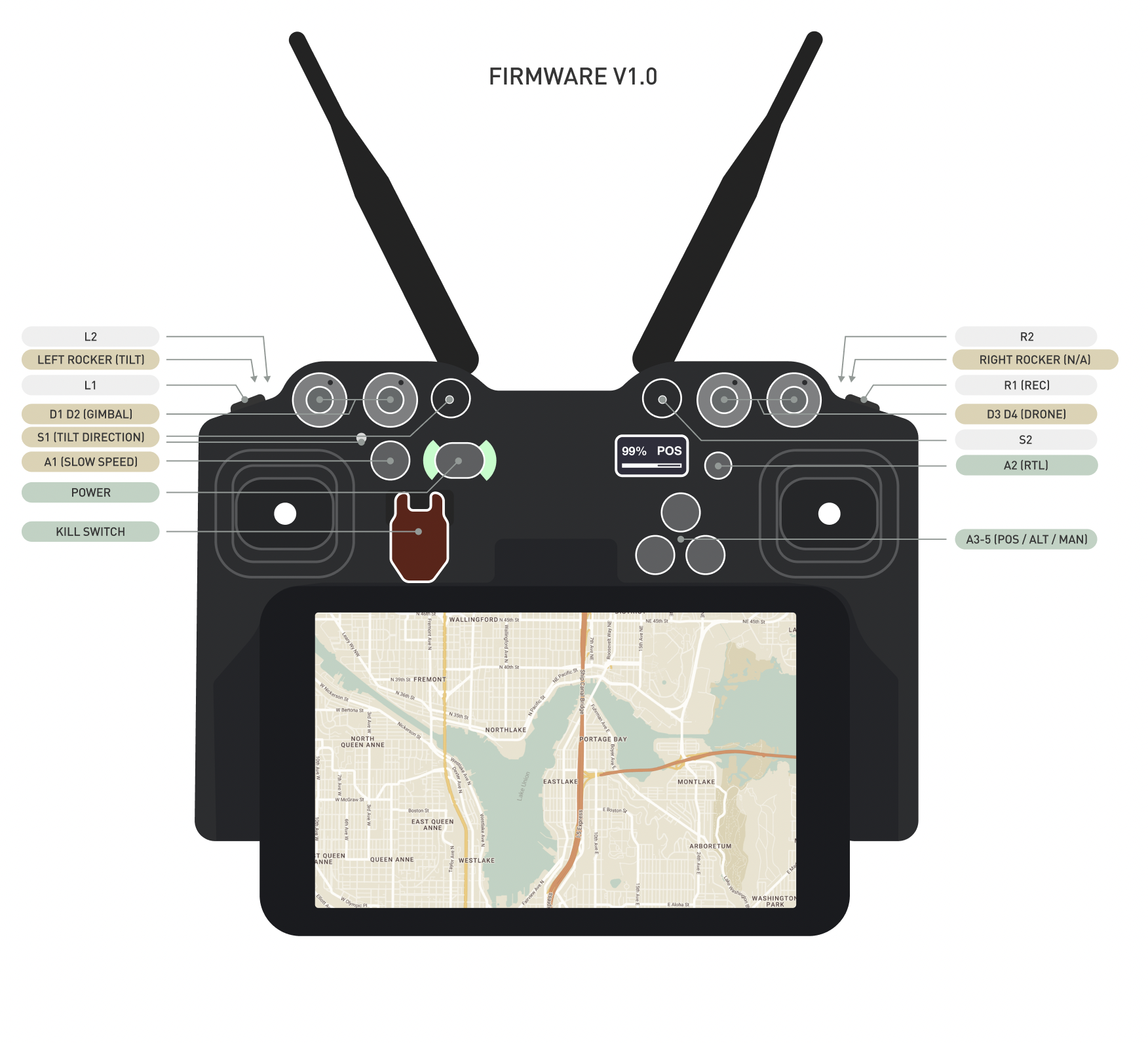
Default mapping for the Pilot Pro V1.0 Firmware
* Green and Yellow inputs are mapped to Freefly defaults (as called out in parentheses) when it ships with Astro
* Gray inputs are not mapped at all when the controller ships with Astro.
* **Refer to** [Input Output Mapping](/ecosystem/controller/pilot-pro/operating-handbook/input-output-mapping.md) **for details**
## Tablet
* 8 inch display
* Enterprise edition (for long-term support) Samsung Galaxy Tab Active5 ([Samsung spec sheet](https://images.samsung.com/is/content/samsung/assets/us/business/mobile/tablets/galaxy-tab-active/explore/Tab_Active5_Spec_Sheet.pdf))
* Tablet is dedicated. Not designed for user swap.
* USB C port of the Tablet is dedicated to connection with the Controller and not accessible.
* All other tablet buttons, ports and camera are exposed and accessible
## Joysticks
* High precision hall sensor Joysticks
* Collapsible stick
* Replaceable sticks
## OLED Screen
The onboard OLED screen on Pilot Pro displays redundant and flight-critical information. It is designed to give pilots the info they need to fly safely in an emergency, even if the tablet were to fail or disconnect.
## Power Button and LED indicator
**Pilot Pro is designed to be powered on and off through the tablet's power button by default.** The power button on the controller should not be used under the normal workflow.
* Powering on the Samsung tablet will turn on controller. Powering off the tablet will turn off controller
* Once the Pilot Pro is powered on, use this button to toggle screens to view controller information.
* Press the power button 7 times to enter debug screen for advanced troubleshooting.
* Controller can still be force powered on/off independently by pressing and holding the power button until the progress bar fills up.
* Pressing and holding the power button for more than 15 seconds will hard reset the controller in case of a problem with the MCU or the firmware.
### LED Colors
* Green - Powered On, and Ready to fly
* Blue - Powered On, but not ready (No link to Drone)
* Orange - Warning (ex: low battery)
* Red - Critical Error
## Ports
Bottom of the controller
| Power input (USB TYPE C) | External power input. No data. |
| ------------------------------ | --------------------------------------------------------------------------------------------------------------------------------------- |
| SD Card (micro sd card) | Internal log and storage of the Controller. |
| Power & CAN (4-pin Microfit) | External power input and CAN. |
| COM 1 and COM 2 (JST GH 6-PIN) | For future expansion. |
| 2x USB 3.0 PORTS (USB TYPE C) | Connected to the internal USB hub as client. Hub has Tablet as the host, controller MCU and radio modules as clients. Ports deliver 5V. |
---
# Agent Instructions
This documentation is published with GitBook. GitBook is the documentation platform designed so that both humans and AI agents can read, navigate, and reason over technical content effectively. Learn more at gitbook.com.
## Querying This Documentation
If you need additional information that is not directly available in this page, you can query the documentation dynamically by asking a question.
Perform an HTTP GET request on the current page URL with the `ask` query parameter, and the optional `goal` query parameter:
```
GET https://docs.freeflysystems.com/ecosystem/controller/pilot-pro/operating-handbook/user-interface.md?ask=&goal=
```
`ask` is the immediate question: it should be specific, self-contained, and written in natural language.
`goal` is optional and describes the broader end goal you are ultimately trying to accomplish on behalf of the user. GitBook uses it to tailor the answer towards what is most useful for that goal.
The response will contain a direct answer to the question and relevant excerpts and sources from the documentation.
Use this mechanism when the answer is not explicitly present in the current page, you need clarification or additional context, or you want to retrieve related documentation sections.