# Ecosystem

***

## Pilot Pro Configurations + Use Cases

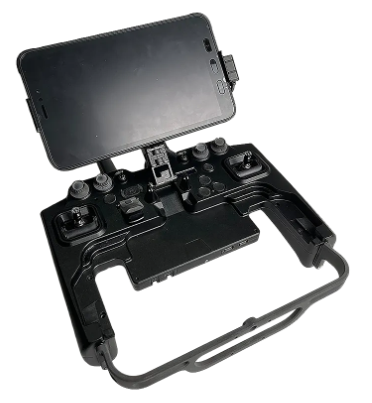
### On the Move

<figure><img src="https://2546427254-files.gitbook.io/~/files/v0/b/gitbook-x-prod.appspot.com/o/spaces%2FWXREyAKYAeQJ4gfg2SPg%2Fuploads%2Fgit-blob-cc1451d75f759bfd415b038eda8ead44ee584d32%2FScreenshot%202023-06-27%20at%204.24.39%20PM%20(1).png?alt=media" alt=""><figcaption></figcaption></figure>

* Operate Pilot Pro as it ships.
  * This solution will give you a controller that is light enough to take with you when constantly on the move, but still has everything you need to make it through 6hrs of flight.
  * Pilot Pro ships standard with a Neck Strap, Handle Grips, Tablet Guard, and a SKB Protective Case.
  * Capably of being fully charged in 1 hour. (2 hours if Pilot Pro is in use.)
* Weight: 1.9Kg
* Additional Accessories: 45W charger and USB-C cable

### Mobile Station

<figure><img src="https://2546427254-files.gitbook.io/~/files/v0/b/gitbook-x-prod.appspot.com/o/spaces%2FWXREyAKYAeQJ4gfg2SPg%2Fuploads%2Fgit-blob-c5017cb57f4526ccbad228c745dda514d45243eb%2FScreenshot%202023-06-27%20at%204.25.11%20PM.png?alt=media" alt=""><figcaption></figcaption></figure>

* Add a V-Mount Battery Plate Kit to operate all day long using your choice of V-Lock Battery.
  * This solution will allow you to swap external batteries
* Rig up with lanyard harness, and adjust the monitor into the up position for better view.
* Tablet Guard/handle rests on your body for comfort during extended flight time.
* Weight: 2.3Kg (w/FXLion Nano One)

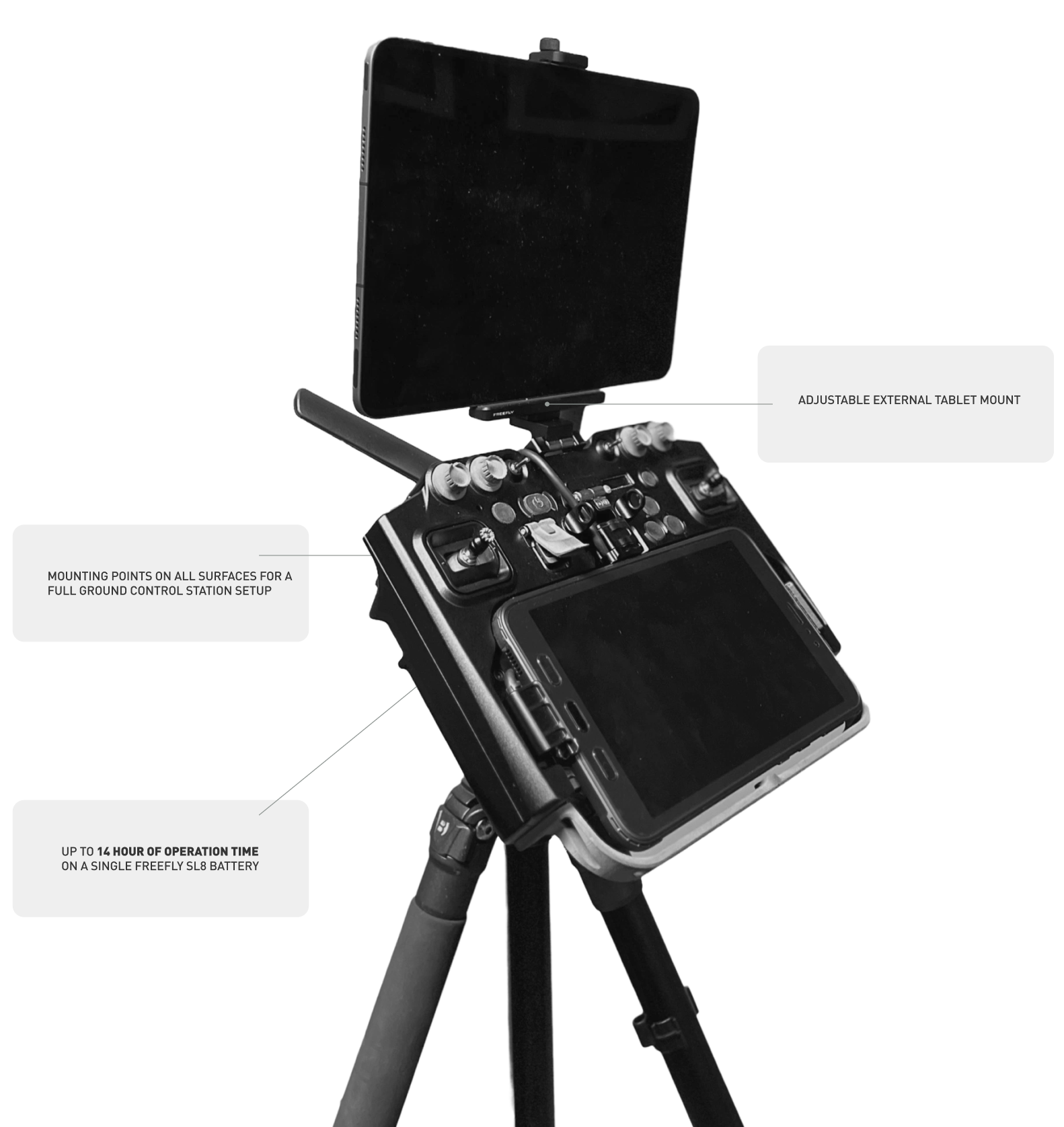
### Command Station

<figure><img src="https://2546427254-files.gitbook.io/~/files/v0/b/gitbook-x-prod.appspot.com/o/spaces%2FWXREyAKYAeQJ4gfg2SPg%2Fuploads%2Fgit-blob-1c4f97c8e99d95842b5c4a73f50bec5607cda999%2FScreenshot%202023-06-27%20at%204.26.56%20PM.png?alt=media" alt=""><figcaption></figcaption></figure>

* Set up Pilot Pro as a full ground control station by adding a second screen and mounting to a tripod or Pilot's Station.
  * This solution will allow you to have the ultimate pilot command center. Connecting to additional tablets, 3rd Party Applications, and computer to suite all your needs.
* Weight: Variable based on setup.
* Available Accessories:
  * [Tripod Adapter (Pilot Pro)](https://store.freeflysystems.com/products/tripod-adapter-pilot-pro)
  * [Freefly Adjustable Accessory Mount](https://store.freeflysystems.com/products/freefly-adjustable-accessory-mount)
  * [Tablet Clamp Mount](https://store.freeflysystems.com/products/tablet-clamp-mount)

***

## Radio Modules

* Freefly currently offers a Herelink radio module and a NDAA/Blue compatible Doodle radio module.
* Pilot Pro architecture allows radio backpack to be swappable (not hot-swappable).
* Radio backpacks have a RJ-45 Ethernet connector that allows external devices to directly join the radio network. This enables use cases such as using the ESRI Site Scan on an iPad.

***

## Accessories

### Mechanical Accessories

<table><thead><tr><th width="151">Part Number</th><th>Name</th></tr></thead><tbody><tr><td>910-00714</td><td><a href="https://store.freeflysystems.com/products/nato-rail?_pos=1&#x26;_sid=ce5166687&#x26;_ss=r&#x26;variant=43686369132766">NATO Rail 62mm</a></td></tr><tr><td>910-00716</td><td><a href="https://store.freeflysystems.com/products/nato-rail?_pos=1&#x26;_sid=ce5166687&#x26;_ss=r&#x26;variant=43686369132766">NATO Rail 90mm</a></td></tr><tr><td>910-00717</td><td><a href="https://store.freeflysystems.com/products/freefly-adjustable-accessory-mount?_pos=2&#x26;_sid=6c0de9c69&#x26;_ss=r">Freefly Adjustable Accessory Mount</a></td></tr><tr><td>910-00718</td><td><a href="https://store.freeflysystems.com/products/tablet-clamp-mount?_pos=2&#x26;_sid=2d9558f5b&#x26;_ss=r">Tablet Clamp Mount</a></td></tr><tr><td>910-00719</td><td><a href="https://store.freeflysystems.com/products/phone-clamp-mount?_pos=2&#x26;_sid=6c536e60a&#x26;_ss=r">Phone Clamp Mount</a></td></tr><tr><td>910-00724</td><td><a href="https://store.freeflysystems.com/products/fxlion-nano-one-14-8v-3-4ah-50wh?_pos=1&#x26;_sid=e9a1920e1&#x26;_ss=r">FXLION Nano One 14.8V 3.4Ah/50Wh</a></td></tr><tr><td>910-00757*</td><td>Battery Mount</td></tr><tr><td>910-00758</td><td>V-Mount Battery Plate Kit</td></tr><tr><td>910-00759</td><td>Pilot Pro Spare Parts Kit</td></tr><tr><td>910-00761</td><td>Replacement Neck Strap</td></tr><tr><td>910-00784</td><td><a href="https://store.freeflysystems.com/products/tripod-adapter-pilot-pro">Right Angle Tripod Mount</a></td></tr></tbody></table>

***

## Connectivity

### Wifi

Pilot Pro's tablet can connect to external hotspots via wifi as normal.

* Use the Android wifi settings screen to select the hotspot.
* It is advised to use a 5ghz hotspot rather than a 2.4ghz one, as the 2.4ghz one may work poorly in the presence of the drone's point-to-point radio, and may interfere with the drone's connection to the Pilot Pro

### LTE

The tablet can accept an optional nano SIM card from a number of providers and get internet access using cellular networks. This will allow downloading of maps and other data while not connected to wifi.

### RJ45 / ethernet cable

{% hint style="danger" %}
**NEVER CONNECT TWO PILOT PROS TOGETHER WITH ETHERNET CABLES.**

This will cause an ip conflict which will cause networking problems with the drone. Internal networking components use static IP addresses.
{% endhint %}

The RJ45 connector on the back of the radio module is used to connect to the drone, not the internet. It is controlled by the ethernet settings in the Android app and is preconfigured by Freefly. They can be changed, but doing so will break the connection to the drone. Should this happen, the steps to restore the connection are:

* Go to connection settings in the Android settings menu
* Go to more connections
* Select ethernet
* Disable the ethernet connection (required to make changes)
* Go to the configuration screen
* Select Static IP (selecting DHCP would allow a user to connect this to an external network and give the tablet internet access, at the expense of comms to the drone)
* In the static IP settings, set these in THIS ORDER:
  * IP address = 192.168.144.11
  * Netmask = 255.255.255.0
  * Gateway = 192.168.144.12
  * DNS = 8.8.8.8
* Use the Android back button to hide the keyboard, then select save
* Reenable the ethernet slider

***

## Multi-Device Ops

Here are the most common use cases:

* Connecting a computer to the drone
* Adding a second tablet / iPad
* Screen mirroring to an external monitor

### Connecting a Computer to the drone

A computer can control the drone by joining the radio network on the Pilot Pro. This opens up possibilities for diverse scenarios, including the operation of a mission control application like AMC on a laptop. The RJ45 port, located on the Pilot Pro radio module, serves as a gateway for the computer to tap into the drone's internal radio network.

{% hint style="danger" %}
This can be potentially dangerous and cause issues with the connection to the drone
{% endhint %}

#### Connecting AMC on a laptop to Astro

* Ensure the drone is on the ground and disarmed
* Connect a laptop to the controller via RJ45 (example accessories: <https://a.co/d/06ZZ3kP>, <https://a.co/d/663glnm>)
* Change the computer's IP address for the RJ45 connection to:
  * IP address: any value in the following range 192.168.144.100-150 (this range is not used by the internal components)
  * Netmask 255.255.255.0
  * Gateway - do not populate, can use 192.168.144.12 if required
  * DNS - do not populate
* From a command prompt, the computer should be able to ping components in the system:
  * 192.168.144.20 - Aircraft Skynode
  * 192.168.144.10 - Aircraft side radio
  * 192.168.144.12 - Pilot Pro side radio module
  * 192.168.144.11 - Pilot Pro tablet
* To make a connection to the drone,
  * Open AMC on the connected computer
  * Go to settings, then Comm Links
  * Add a new connection with the following properties
    * Connection type TCP
    * IP address 192.168.144.20
    * Port 5790
  * Save and click connect, and AMC should connect to the aircraft.

#### **Connecting Alta X or Generic Vehicle to Herelink's Serial Port**

In this configuration, there is no IP connection to the drone directly. However, it is still possible to connect to the data stream with a computer via the Mavlink router on the herelink. To do so:

* Connect to the RJ45 port and configure the network as listed for Astro above.
* Open AMC
* Go to settings, Comm Links
* Add a new connection and edit it as shown
  * ![](https://2546427254-files.gitbook.io/~/files/v0/b/gitbook-x-prod.appspot.com/o/spaces%2FWXREyAKYAeQJ4gfg2SPg%2Fuploads%2Fgit-blob-ff43f50f0bacc93c1f3062785f0c4d7ebcad7e4d%2Fimage%20\(5\).png?alt=media)
* Click connect
* AMC should be connected to the drone.

{% hint style="warning" %}
Be careful about data usage in this mode- This stream is going through a 57600 baud serial link and has extremely limited bandwidth.
{% endhint %}

### Adding a second tablet / iPad

Mounting: We have the following set of accessories to make it easy to mount second screen/tablet on top of the pilot pro: [Tripod Adapter (Pilot Pro), ](https://store.freeflysystems.com/products/tripod-adapter-pilot-pro)[Freefly Adjustable Accessory Mount, ](https://store.freeflysystems.com/products/freefly-adjustable-accessory-mount)[Tablet Clamp Mount](https://store.freeflysystems.com/products/tablet-clamp-mount).

Cables: If you are using a tablet/iPad, you can have it join the radio network to access data through the RJ45 connector on the Pilot Pro's Radio Module. You'll need accessories like an [RJ45 cable](https://a.co/d/06ZZ3kP), [Ethernet adapter](https://a.co/d/663glnm).

Connecting: Setup will depend on the software you use. However it will most likely be very close to the [following](#connecting-amc-on-a-laptop-to-astro).

### Screen Mirroring

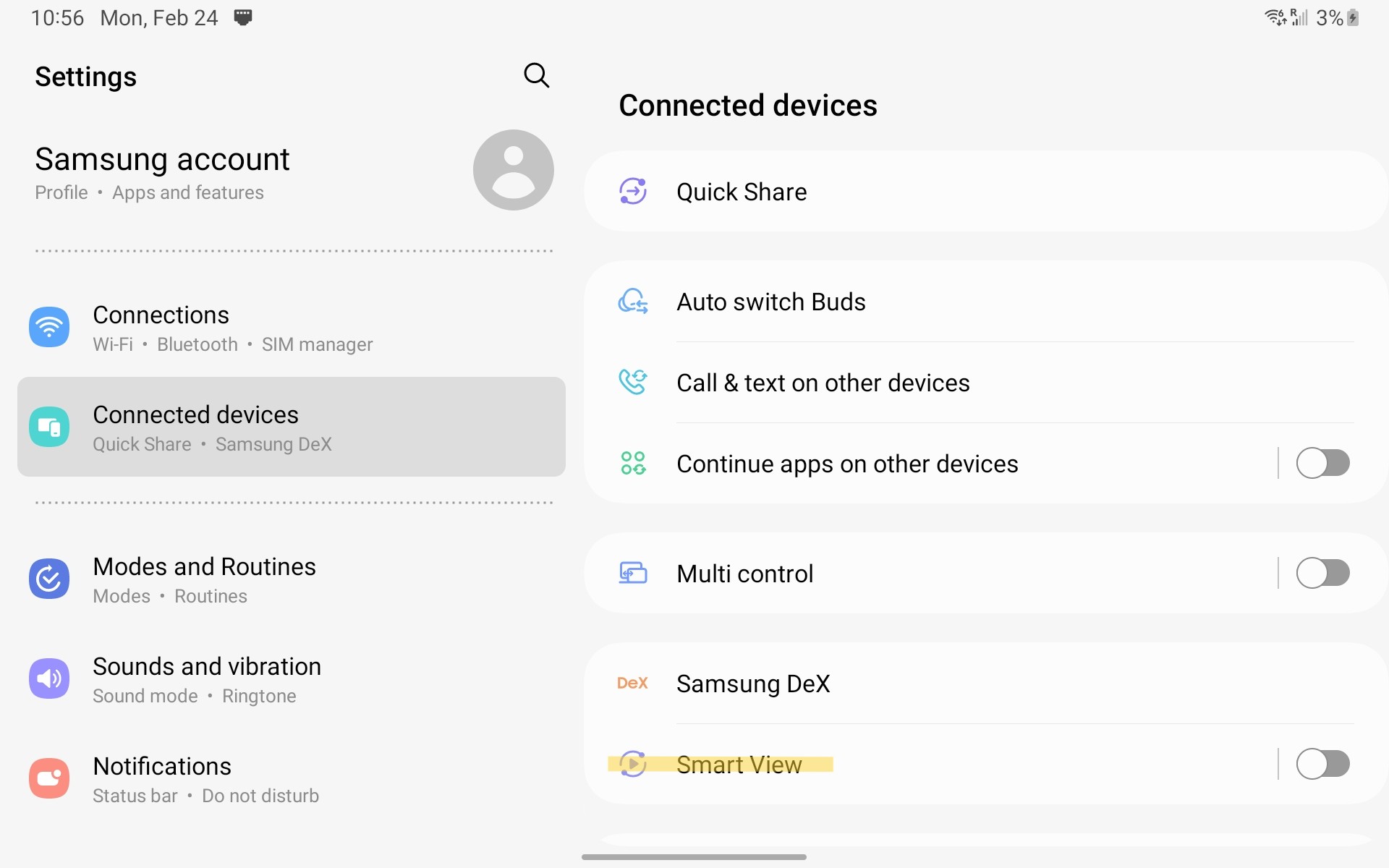
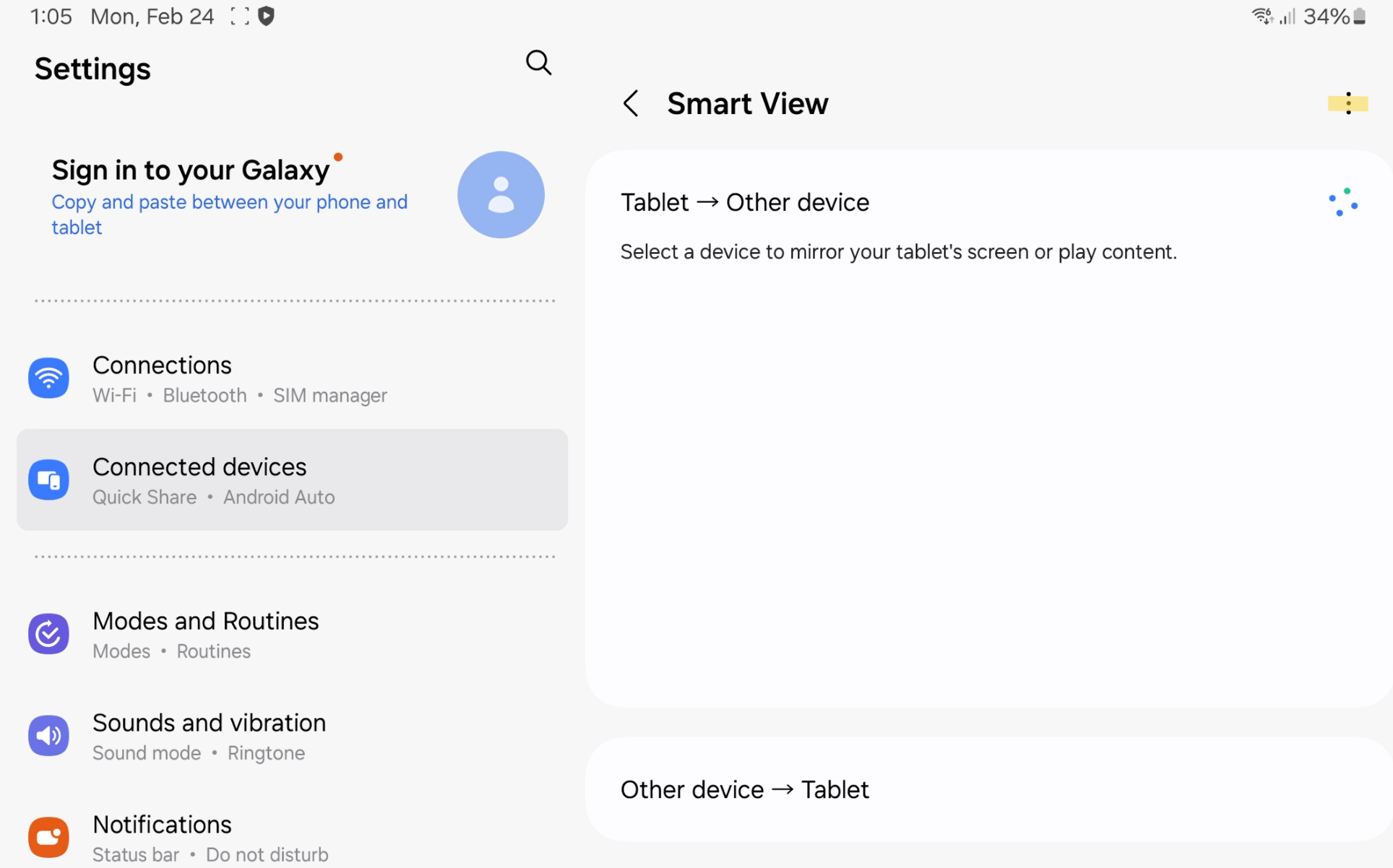
Starting with Pilot Pro App Version 2.0.24 and Firmware 2.0.27, you can now mirror the screen of the Pilot Pro. To start a screen mirror, go to Android's settings > Connected devices > Smart View

<figure><img src="https://2546427254-files.gitbook.io/~/files/v0/b/gitbook-x-prod.appspot.com/o/spaces%2FWXREyAKYAeQJ4gfg2SPg%2Fuploads%2Fgit-blob-71c77e9387cb1a8831ad82cac6fef0aba92882fa%2FAndroid%20Settings%20Mirror%20Screen.jpg?alt=media" alt=""><figcaption><p>Smart View option for Screen Mirroring</p></figcaption></figure>

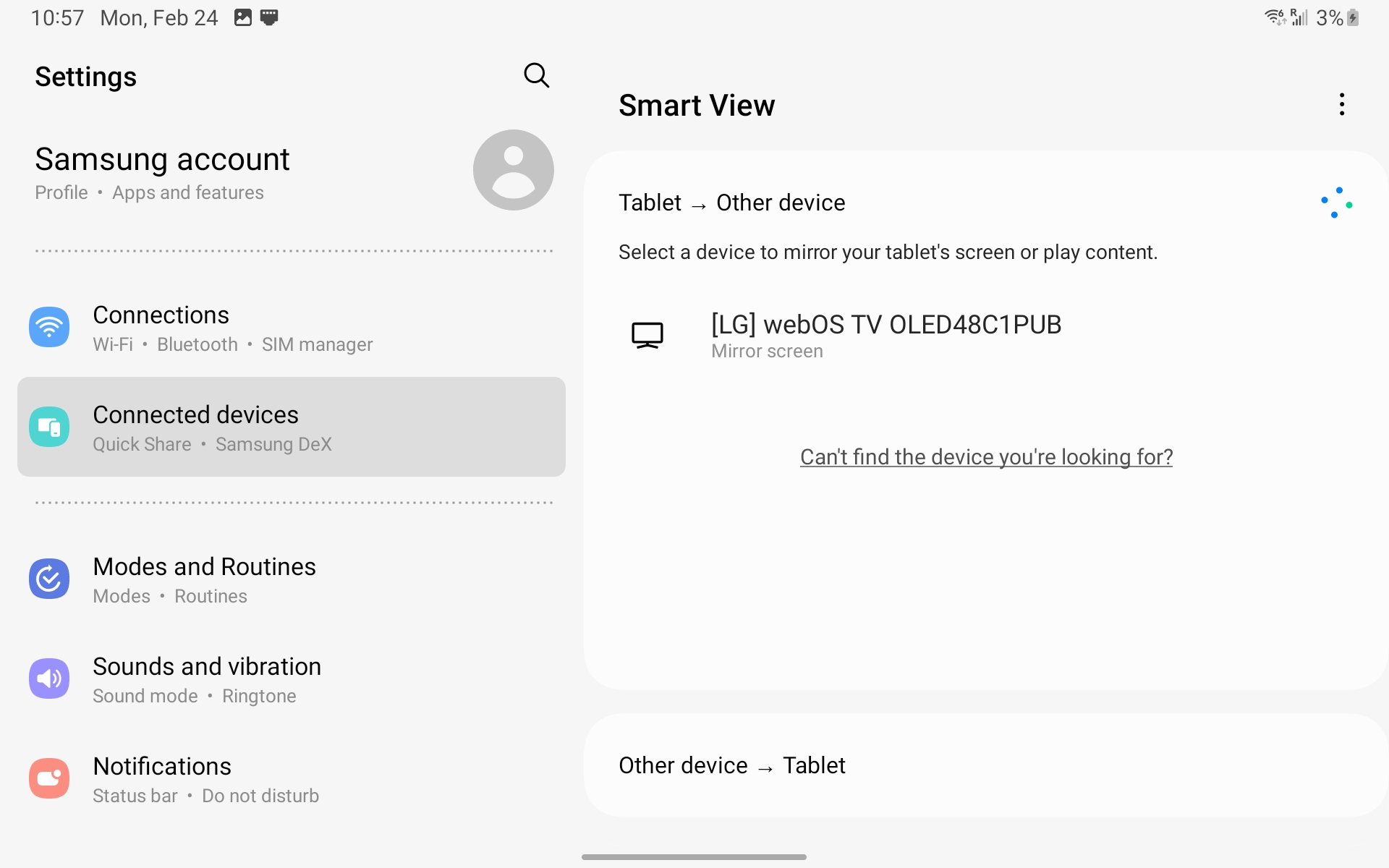
Your tablet will automatically start a search for other devices that it can cast to

<figure><img src="https://2546427254-files.gitbook.io/~/files/v0/b/gitbook-x-prod.appspot.com/o/spaces%2FWXREyAKYAeQJ4gfg2SPg%2Fuploads%2Fgit-blob-eb3d44a92f05790449719c5fcf55765bbe2f0aa8%2FAndroid%20Settings%20Mirror%20Screen%20Search.jpg?alt=media" alt=""><figcaption><p>Smart View searching for devices</p></figcaption></figure>

#### Screen Mirroring Protocols

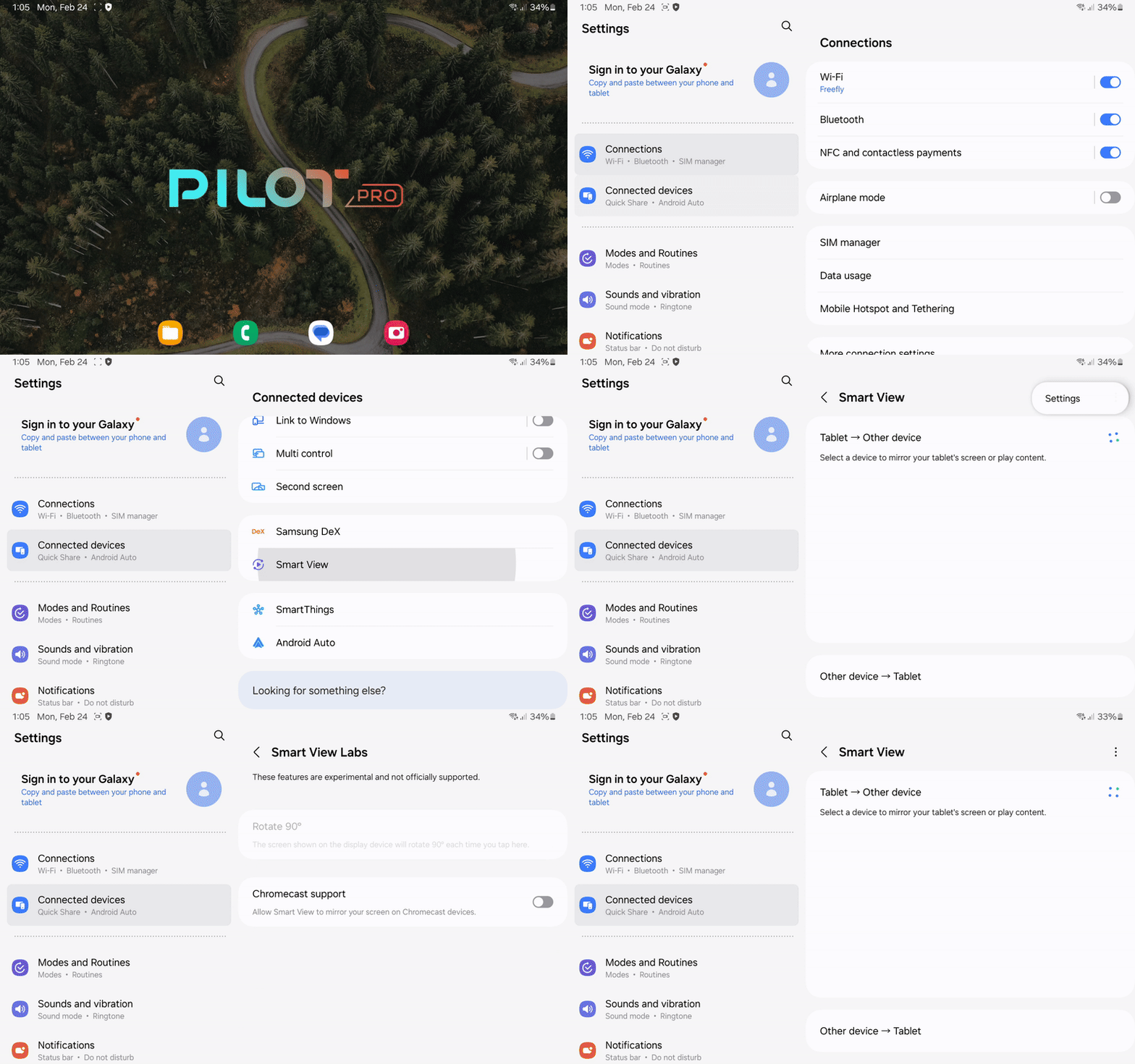
Not all screen mirroring protocols are enabled by default. In order to enable additional protocols, follow the steps below:

The Tab 5 has a green button and the Tab 3 has a red button

{% tabs %}
{% tab title="Tab 5 Video" %}
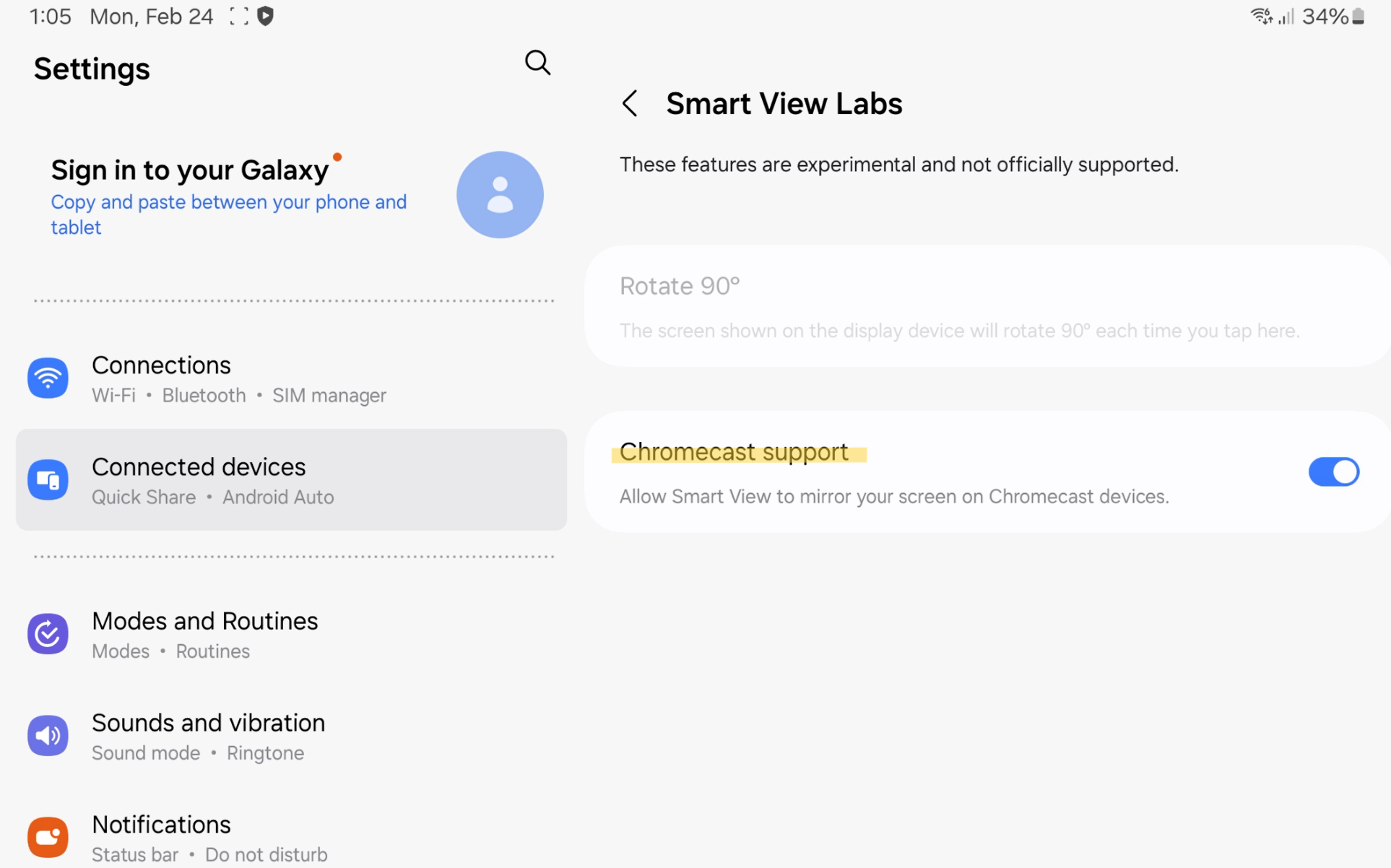
Enable 'Chromecast Support' under Smart View Labs Settings

<figure><img src="https://2546427254-files.gitbook.io/~/files/v0/b/gitbook-x-prod.appspot.com/o/spaces%2FWXREyAKYAeQJ4gfg2SPg%2Fuploads%2Fgit-blob-7c812f516164b0f5610095a32801b6d93548fc67%2FTab%205%20enable%20chromecast.gif?alt=media" alt=""><figcaption><p>Enabling Chromecast support on the Tab 5</p></figcaption></figure>
{% endtab %}

{% tab title="Tab 5 Text" %}
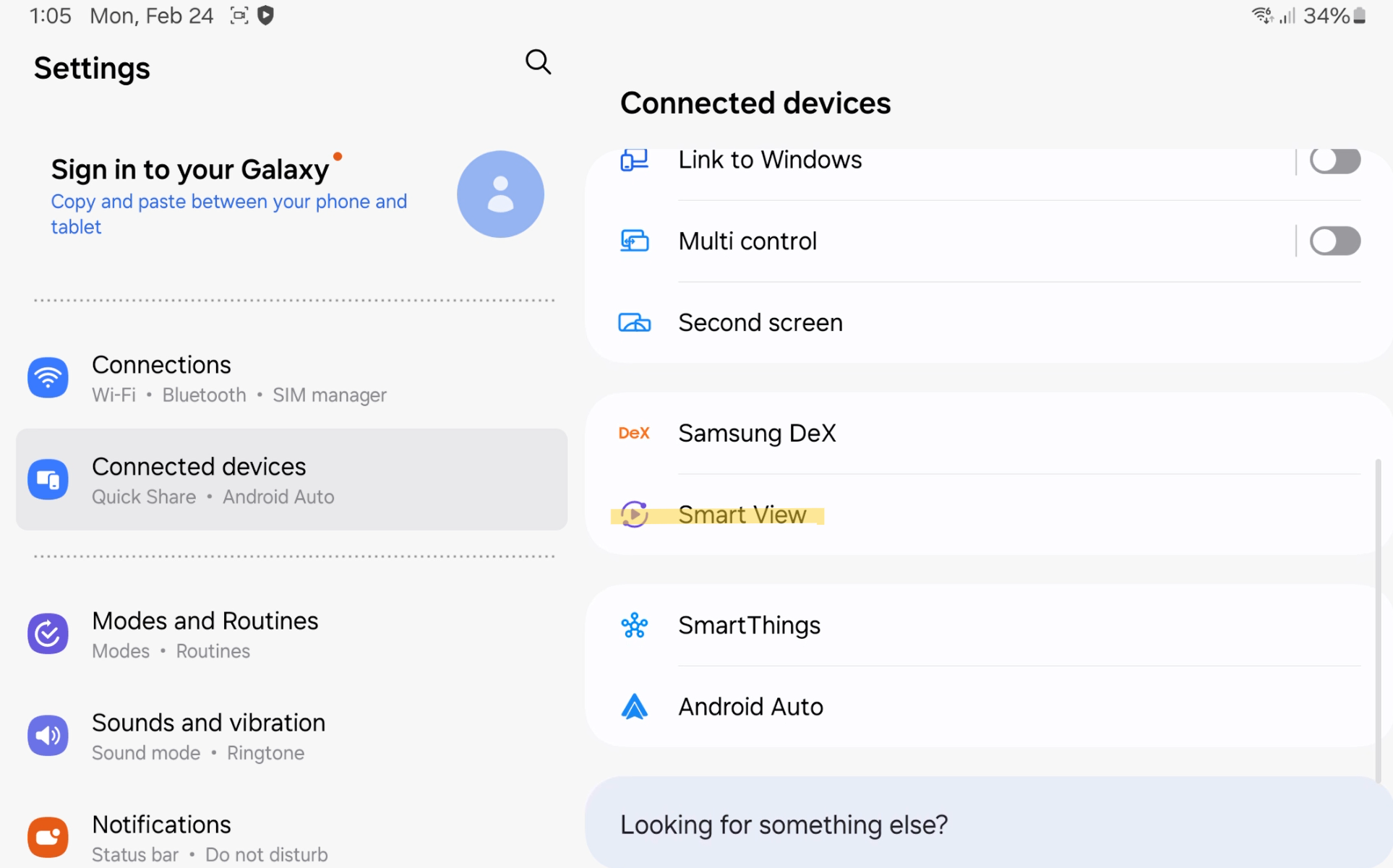
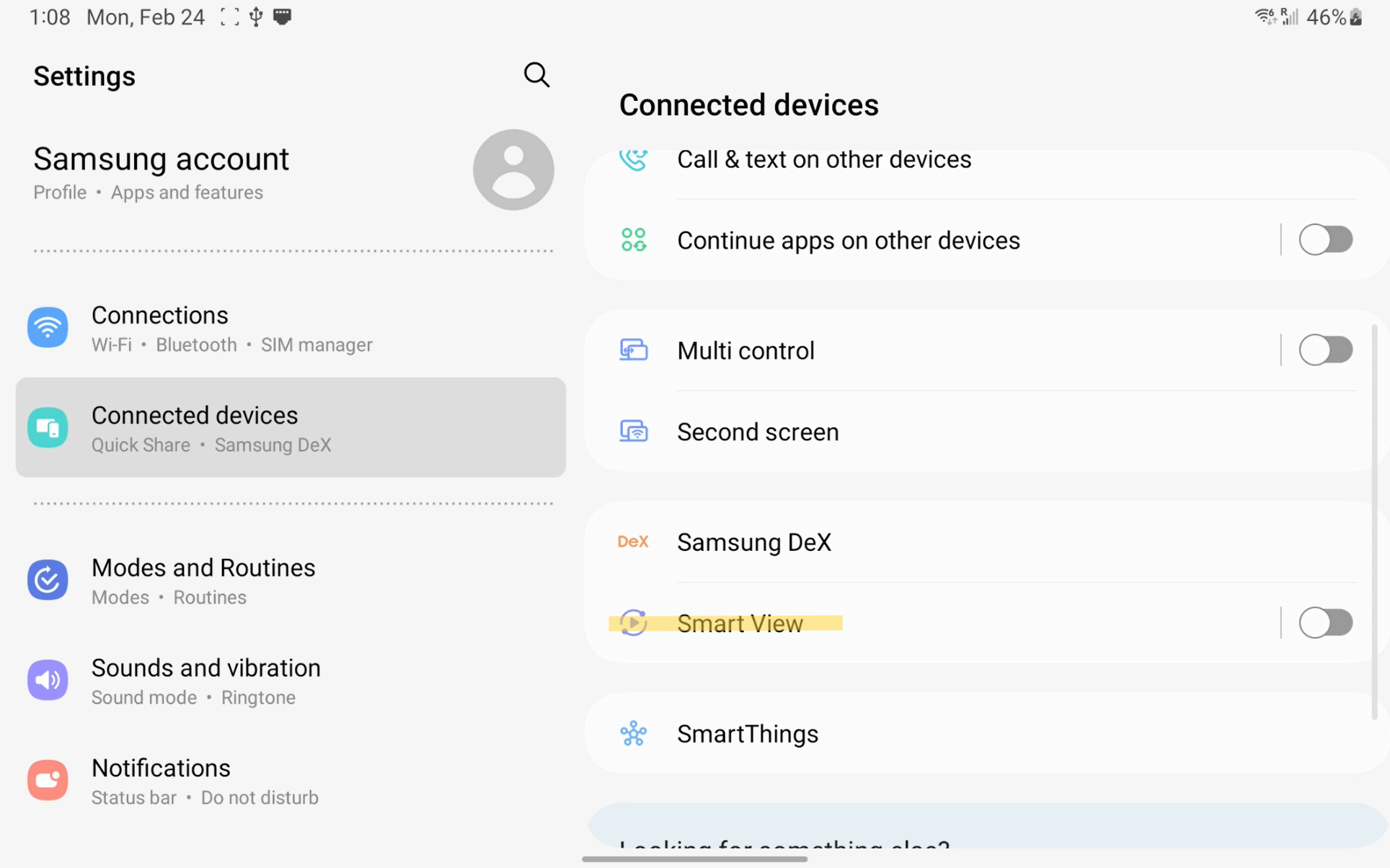
Open the Android settings and navigate to Connected devices > Smart View

<figure><img src="https://2546427254-files.gitbook.io/~/files/v0/b/gitbook-x-prod.appspot.com/o/spaces%2FWXREyAKYAeQJ4gfg2SPg%2Fuploads%2Fgit-blob-7d7b89beb912e37a443c7b991b1ee7694cf70855%2FTab%205%20-%20Android%20Settings%20Smart%20View.png?alt=media" alt=""><figcaption><p>Smart View option under Connected devices</p></figcaption></figure>

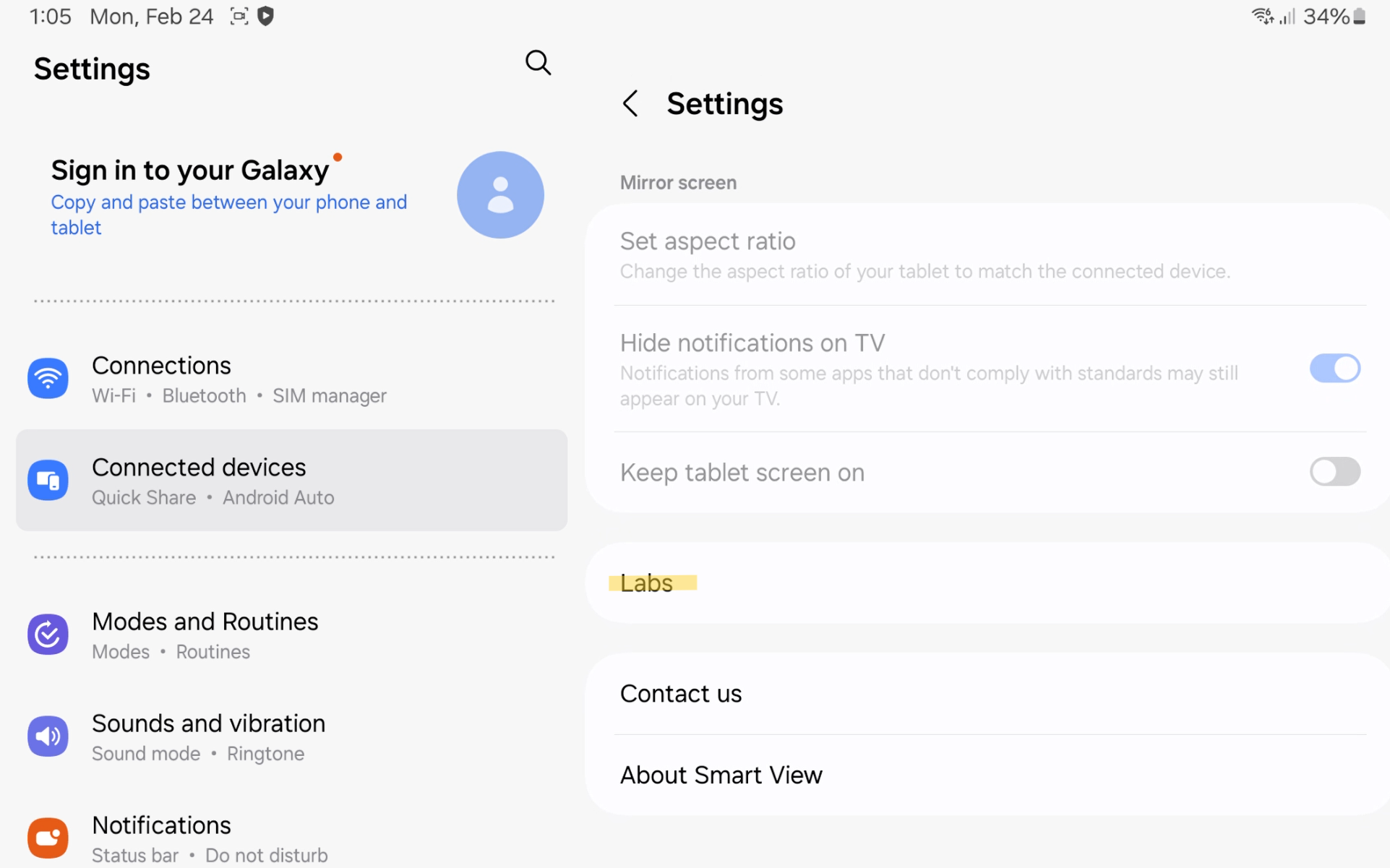
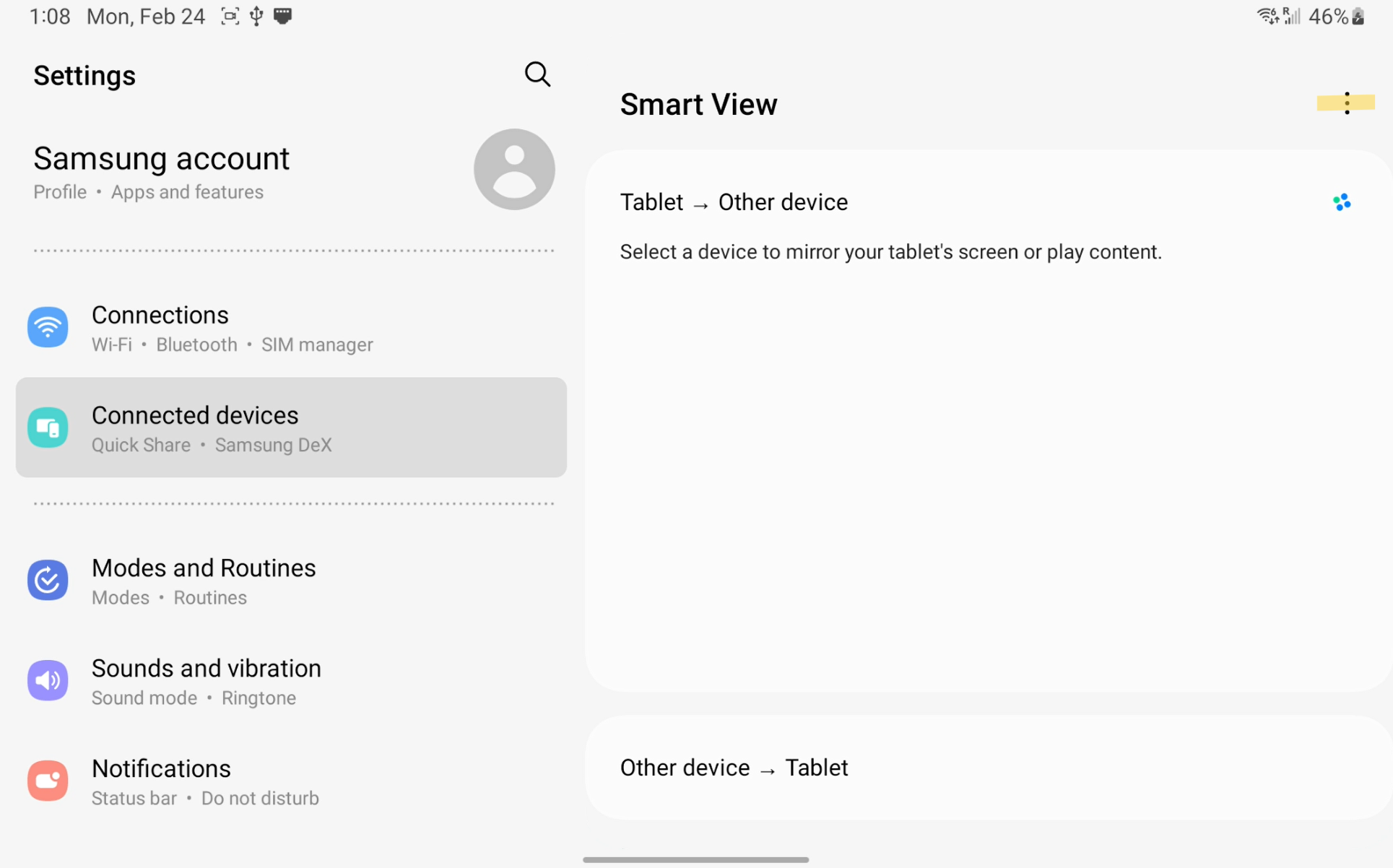
Tap on the 3 dots in the corner to access the Smart View settings

<figure><img src="https://2546427254-files.gitbook.io/~/files/v0/b/gitbook-x-prod.appspot.com/o/spaces%2FWXREyAKYAeQJ4gfg2SPg%2Fuploads%2Fgit-blob-54e7f21a1ae15564eba2c82e29af65c5c7a4500a%2FTab%205%20-%20Smart%20View%20Settings%20Navigation.png?alt=media" alt=""><figcaption><p>Smart View settings menu location</p></figcaption></figure>

In Smart View settings, navigate to the Labs option

<figure><img src="https://2546427254-files.gitbook.io/~/files/v0/b/gitbook-x-prod.appspot.com/o/spaces%2FWXREyAKYAeQJ4gfg2SPg%2Fuploads%2Fgit-blob-177162fbc310409630eb866736c188ff84db603e%2FTab%205%20-%20Smart%20View%20Labs%20Navigation.png?alt=media" alt=""><figcaption><p>Smart View Labs Setting</p></figcaption></figure>

Toggle on Chromecast support

<figure><img src="https://2546427254-files.gitbook.io/~/files/v0/b/gitbook-x-prod.appspot.com/o/spaces%2FWXREyAKYAeQJ4gfg2SPg%2Fuploads%2Fgit-blob-833faed5038a39bc56c79bd685a6de27e7437445%2FTab%205%20-%20Smart%20view%20enable%20chromecast.png?alt=media" alt=""><figcaption><p>Enabling Chromecast Support</p></figcaption></figure>
{% endtab %}

{% tab title="Tab 3 Video" %}
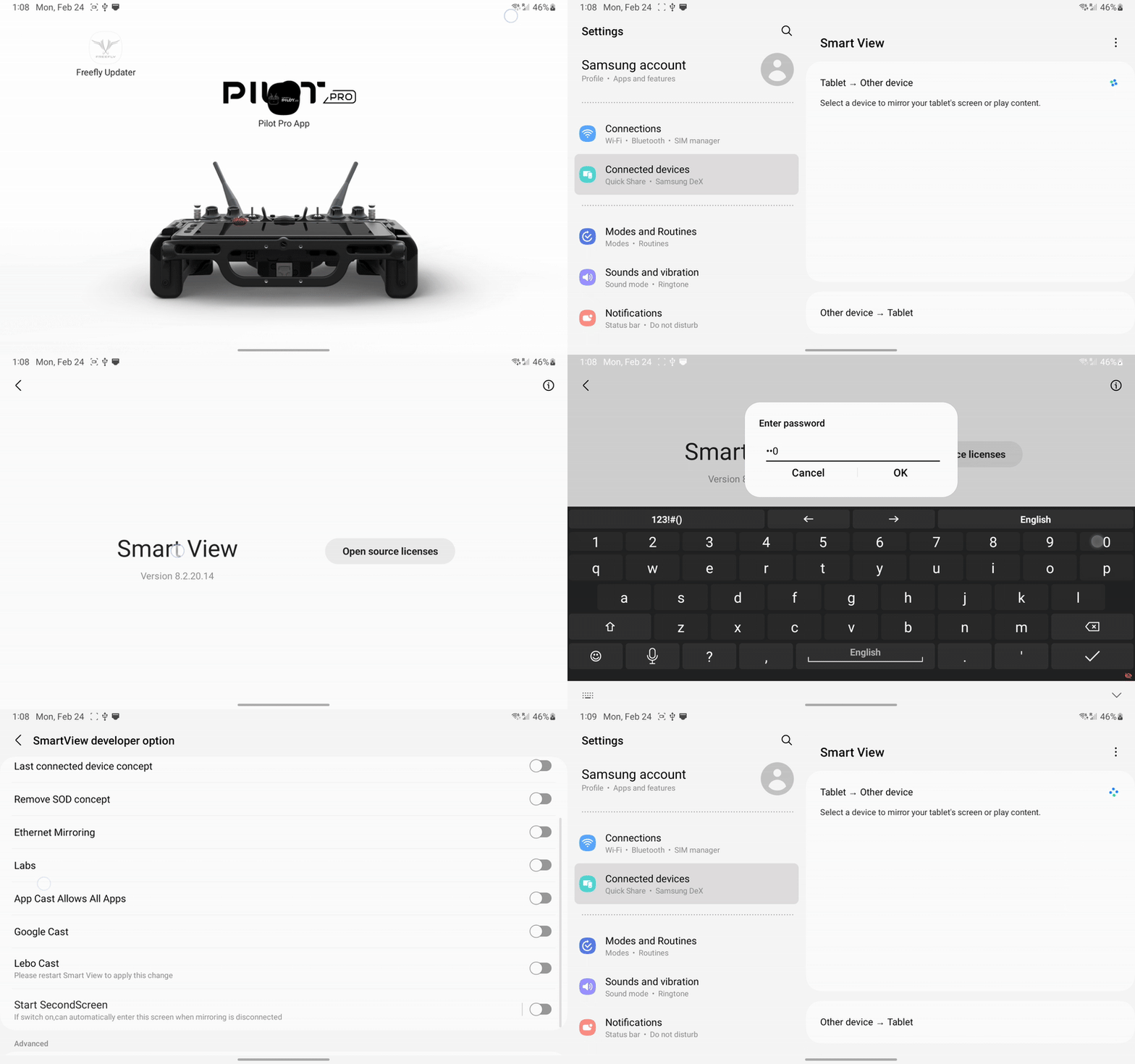
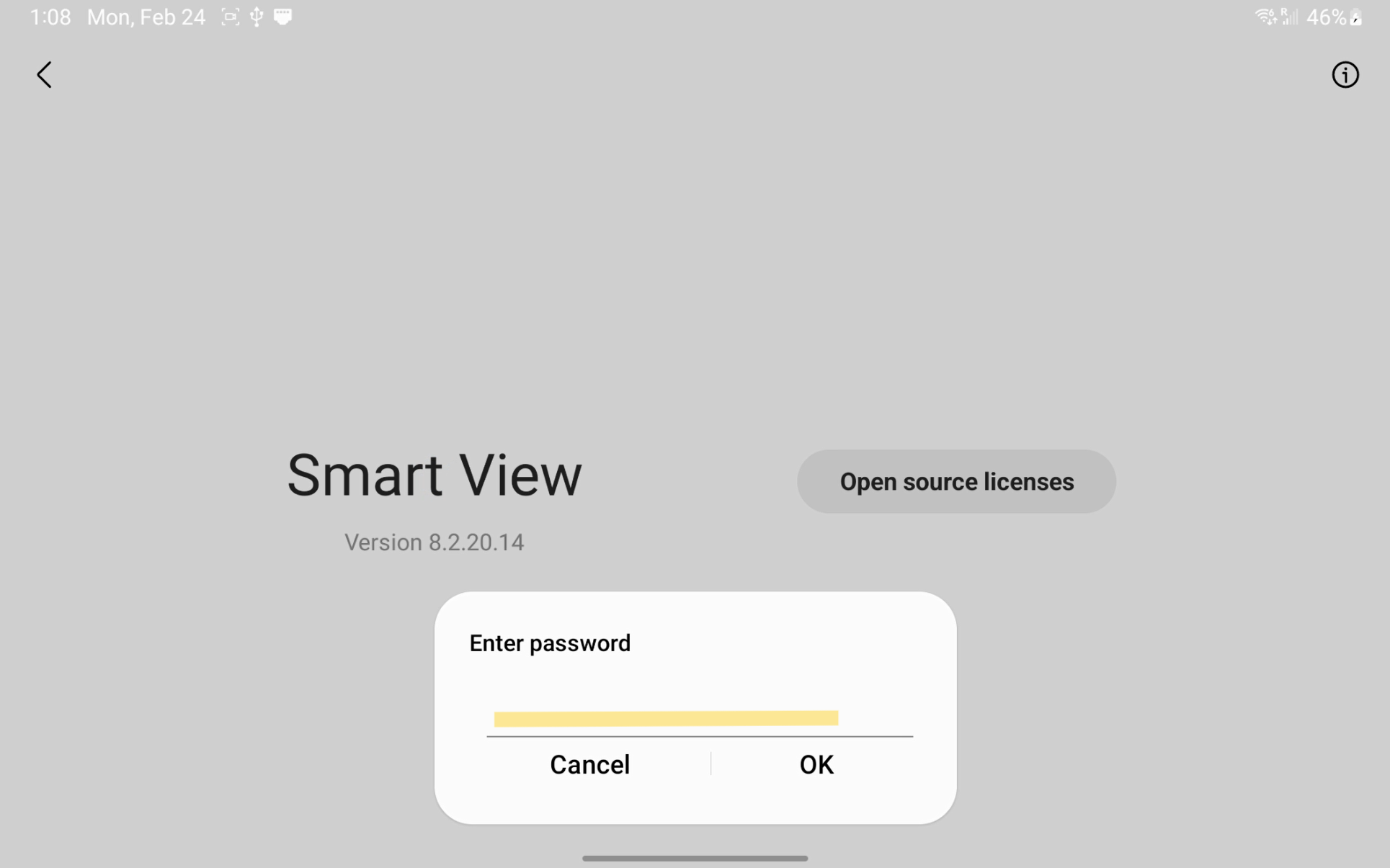
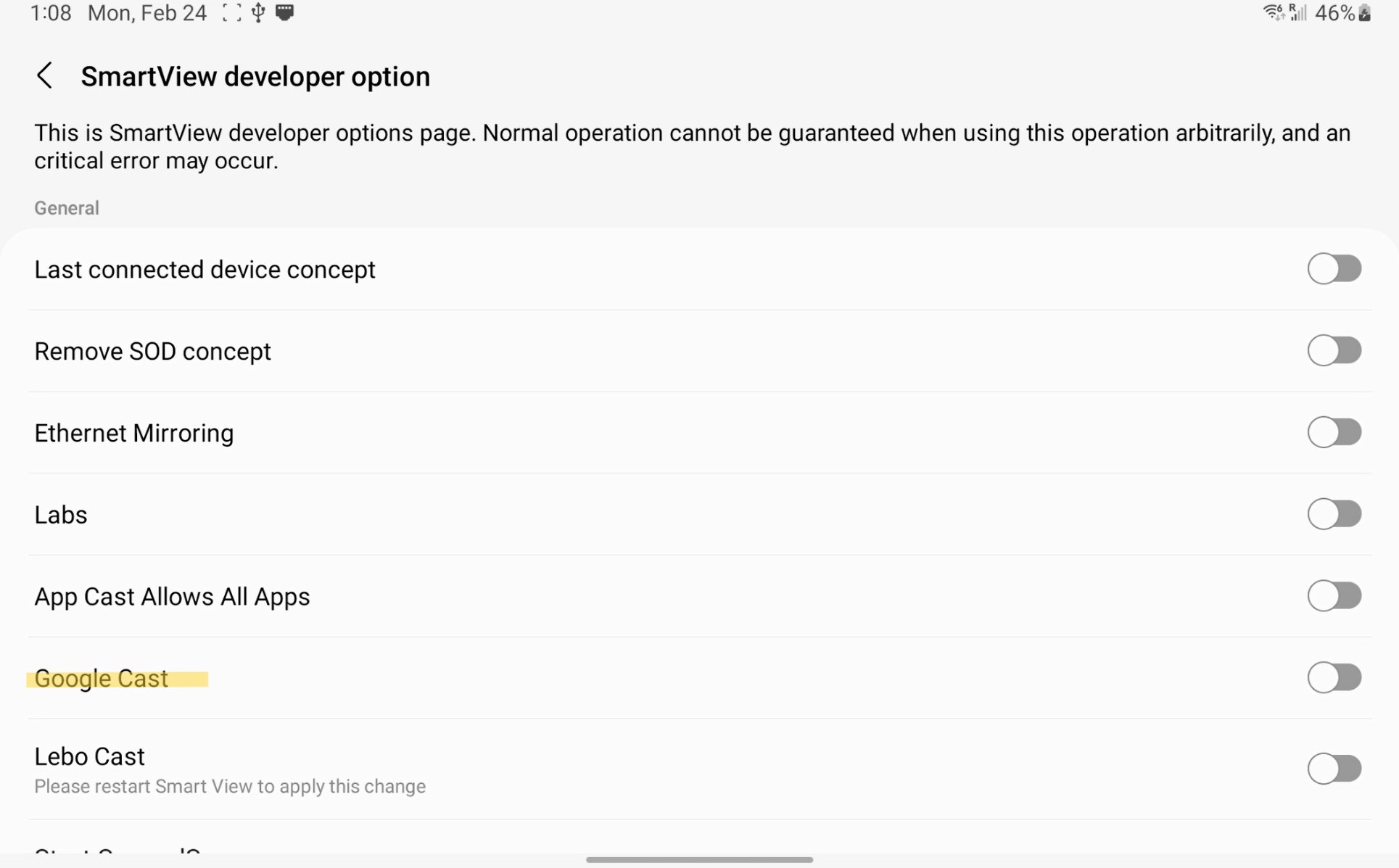
Enable Chromecast Support via Settings > Connected devices > Smart View > Smart View Settings > Rapidly tap "Smart View" > enter "#00rtsp00" for the password > Enable Google Cast

<figure><img src="https://2546427254-files.gitbook.io/~/files/v0/b/gitbook-x-prod.appspot.com/o/spaces%2FWXREyAKYAeQJ4gfg2SPg%2Fuploads%2Fgit-blob-d2a506bc6f60e52308454245a5907eb0a1f4c0ca%2FTab%203%20enable%20chromecast.gif?alt=media" alt=""><figcaption><p>Enabling Chromecast support on the Tab 3</p></figcaption></figure>
{% endtab %}

{% tab title="Tab 3 Text" %}
Open the Android settings and navigate to Connected devices > Smart View

<figure><img src="https://2546427254-files.gitbook.io/~/files/v0/b/gitbook-x-prod.appspot.com/o/spaces%2FWXREyAKYAeQJ4gfg2SPg%2Fuploads%2Fgit-blob-847bbbd7e9eed13a0b57e49afae13d3dc5996623%2FTab%203%20-%20Android%20Settings%20Smart%20View.png?alt=media" alt=""><figcaption><p>Smart View in Android settings</p></figcaption></figure>

Tap on the 3 dots in the corner to access the Smart View settings

<figure><img src="https://2546427254-files.gitbook.io/~/files/v0/b/gitbook-x-prod.appspot.com/o/spaces%2FWXREyAKYAeQJ4gfg2SPg%2Fuploads%2Fgit-blob-1c2837edf280b96723ddd662aee0e44739041643%2FTab%203%20-%20Smart%20View%20Settings.png?alt=media" alt=""><figcaption><p>Smart View settings location</p></figcaption></figure>

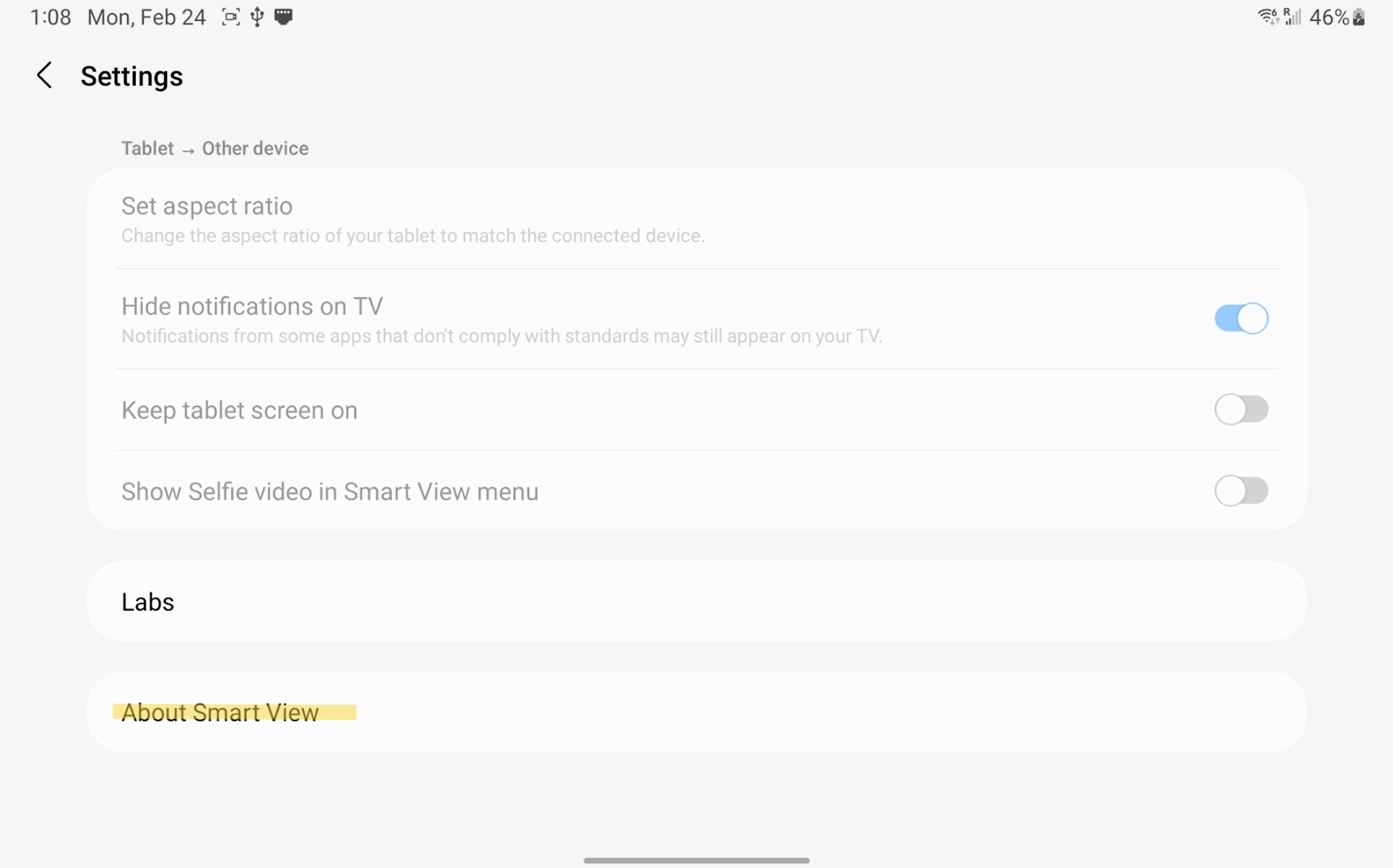
In Smart View settings, navigate to the "About Smart View" option

<figure><img src="https://2546427254-files.gitbook.io/~/files/v0/b/gitbook-x-prod.appspot.com/o/spaces%2FWXREyAKYAeQJ4gfg2SPg%2Fuploads%2Fgit-blob-c85fb8e5fce8ce443c339f581d13eb8ed796e9c7%2Ftab%203%20-%20Smart%20View%20About.png?alt=media" alt=""><figcaption><p>Smart View about page navigation</p></figcaption></figure>

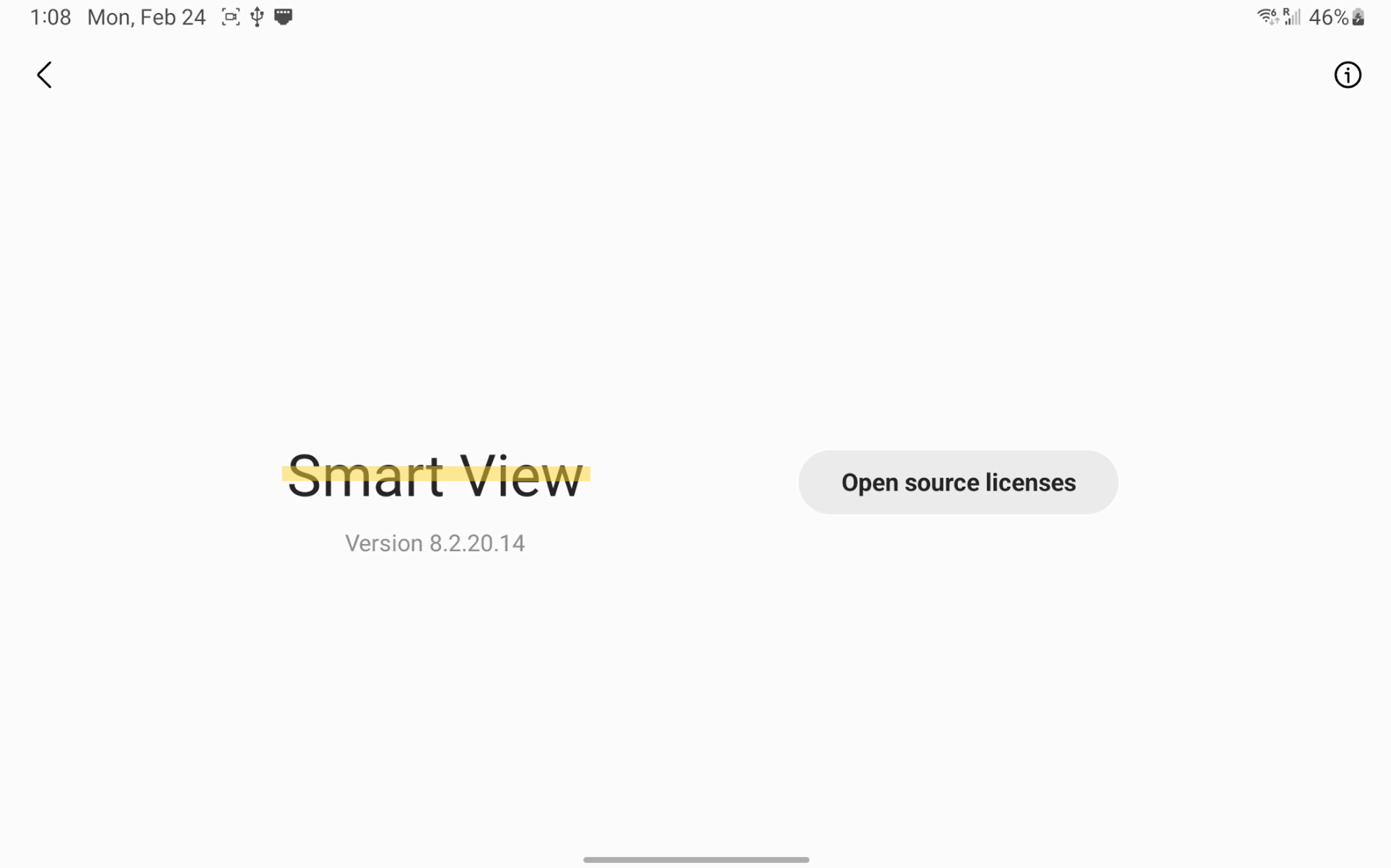
Rapidly tap "Smart View" until you have a password prompt appear

<figure><img src="https://2546427254-files.gitbook.io/~/files/v0/b/gitbook-x-prod.appspot.com/o/spaces%2FWXREyAKYAeQJ4gfg2SPg%2Fuploads%2Fgit-blob-50cee955c9e9213fc6b58b93479c5b11fe467fef%2FTab%203%20-%20Smart%20View%20secret%20menu%20enable.png?alt=media" alt=""><figcaption><p>Smart View hidden developer options</p></figcaption></figure>

In the password prompt, type in:

\#00rtsp00

<figure><img src="https://2546427254-files.gitbook.io/~/files/v0/b/gitbook-x-prod.appspot.com/o/spaces%2FWXREyAKYAeQJ4gfg2SPg%2Fuploads%2Fgit-blob-194d4bb28b6b1ca0db4a0c59b5c365122a00c501%2FTab%203%20-%20Smart%20View%20Password%20Entry.png?alt=media" alt=""><figcaption><p>Smart View password entry for developer options</p></figcaption></figure>

Enable your desired protocol for Screen Mirroring

<figure><img src="https://2546427254-files.gitbook.io/~/files/v0/b/gitbook-x-prod.appspot.com/o/spaces%2FWXREyAKYAeQJ4gfg2SPg%2Fuploads%2Fgit-blob-e743e8c3f2b5ac32ab653323242d3d274daecfef%2Ftab%203%20-%20smartview%20developer%20options.png?alt=media" alt=""><figcaption><p>Enabling Additional Screen Mirroring Protocol</p></figcaption></figure>
{% endtab %}
{% endtabs %}