> For the complete documentation index, see [llms.txt](https://docs.freeflysystems.com/llms.txt). Markdown versions of documentation pages are available by appending `.md` to page URLs; this page is available as [Markdown](https://docs.freeflysystems.com/astro/pilots-operating-handbook/essential-software/auterion-mission-control/amc-plan/transfer-mission-plan-and-kml-files-with-herelink.md).
# Transfer Mission Plan and KML Files with Herelink
## Options for importing/exporting plans
* **Mission import/export:** AMC’s .plan files can be imported and exported. This is useful for creating missions on a computer, then importing all of them to Herelink at the same time
* **KML import:** KML files can be imported to AMC. This is useful for creating mission shape definitions in some software, then importing all of them to Herelink at the same time.
Important Note on importing:
* Zoom in to maximum level, then create a random survey shape. If you don’t zoom in, survey shape could be very large and could crash AMC
* Then click “import KML” on the right toolbar
* Survey shape will automatically change to the data defined in the KML import
* **KML export:** This is useful for exporting waypoints outside AMC. You won’t be able to import them back as KML, since these are waypoints, and not a shape definition.
## Procedures for transferring files to/from Herelink
### Method 1: Micro USB port
{% hint style="info" %}
This method may not work as expected on Mac. We recommend using Method 2 on Apple computers.
{% endhint %}
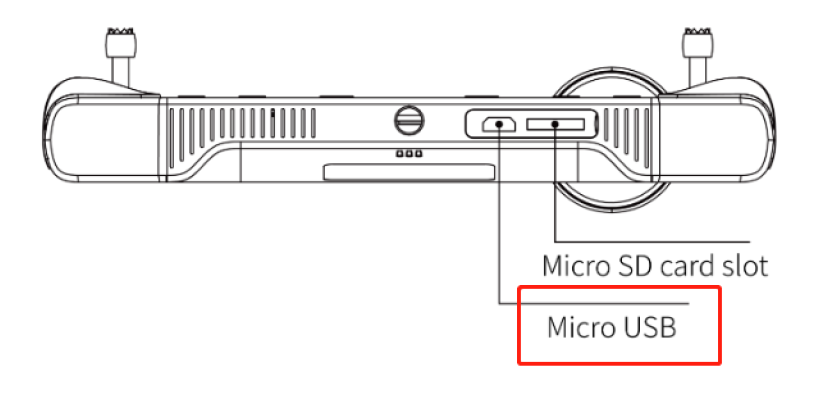
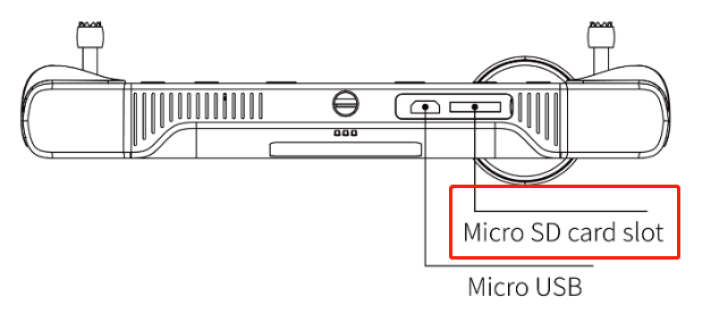
1\) Connect the Herelink via the Micro USB port to a computer.
2\) Turn on the Herelink.
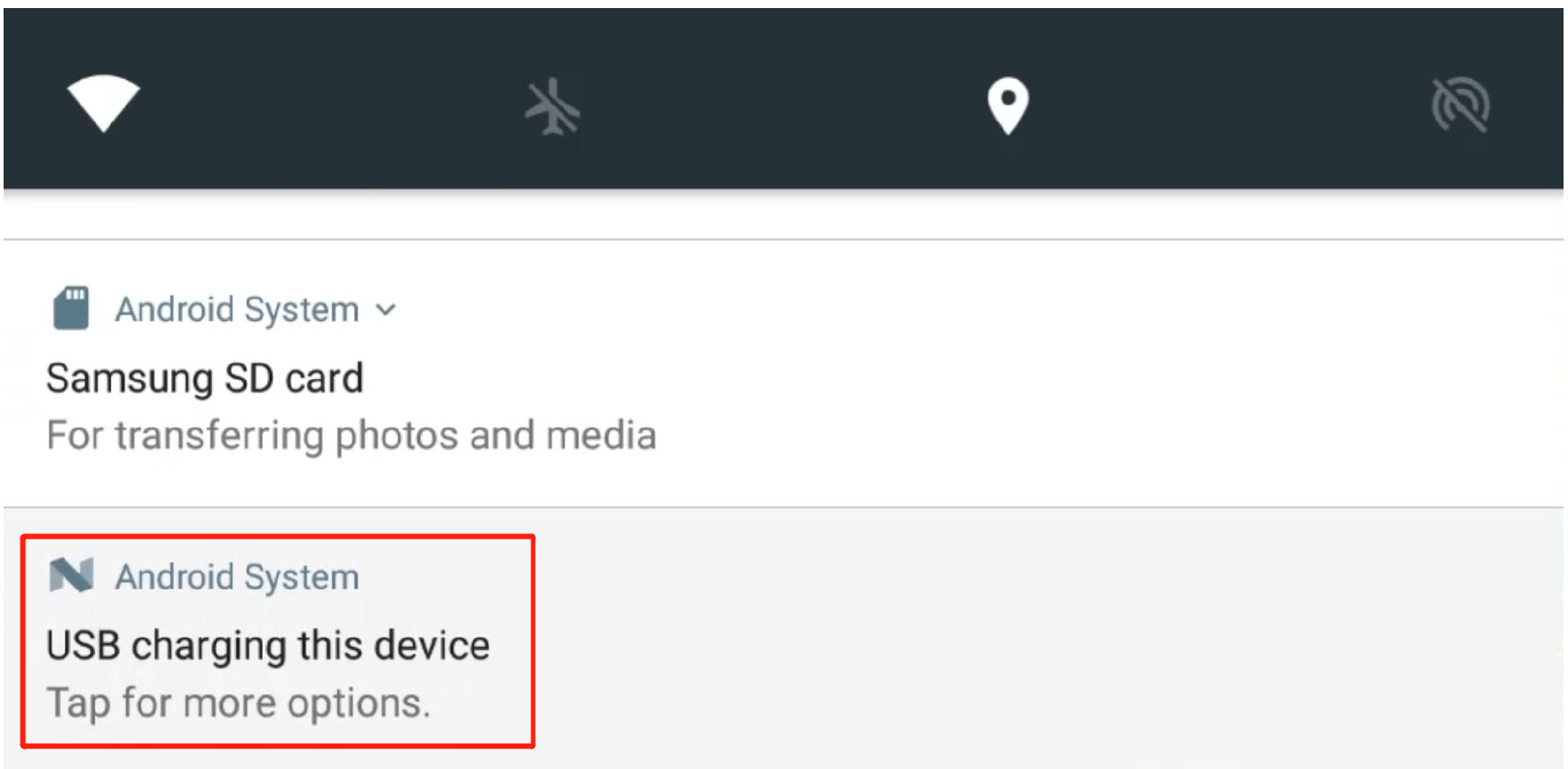
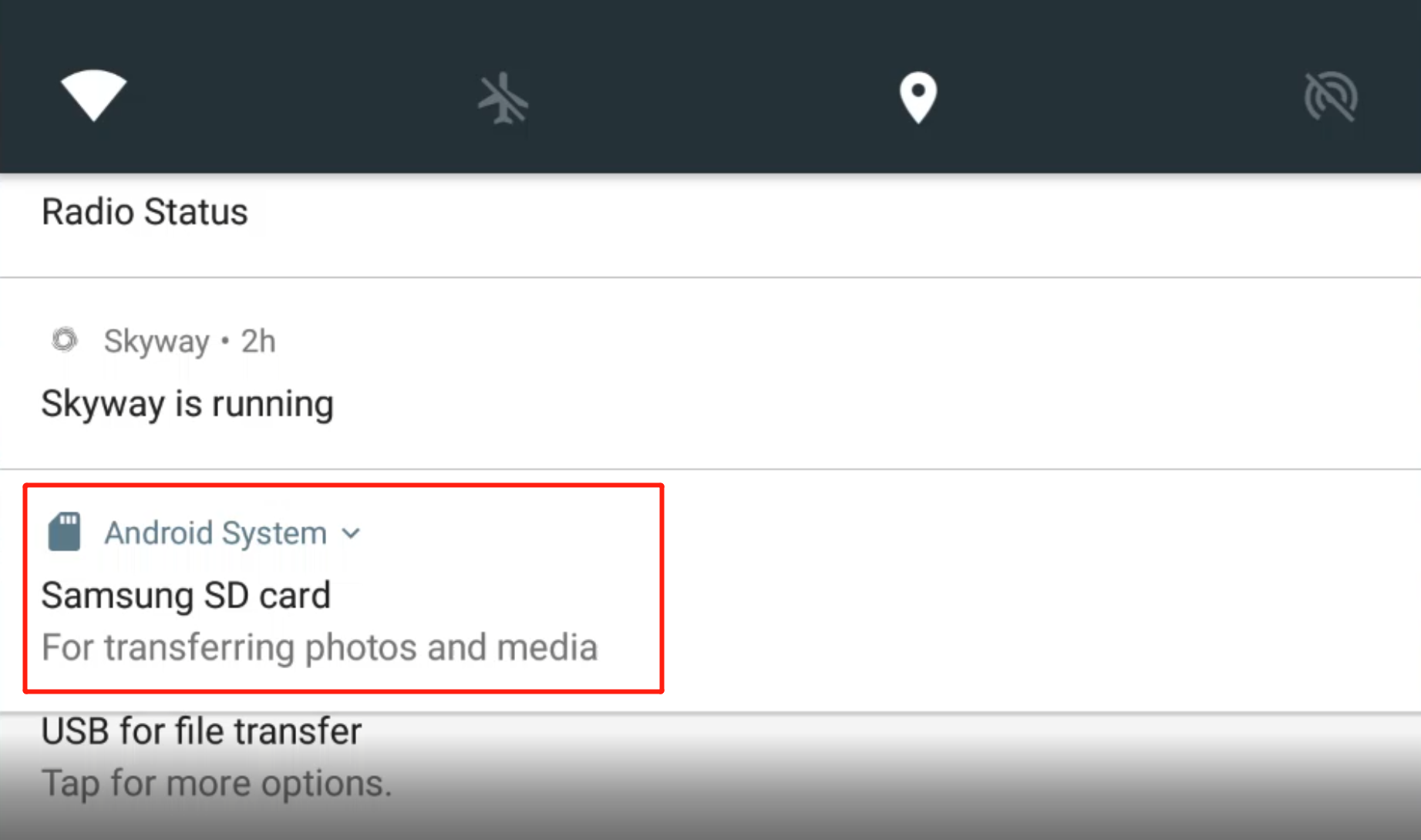
3\) Drag down from the top to open the drop-down menu. Select “USB Charging this device”.
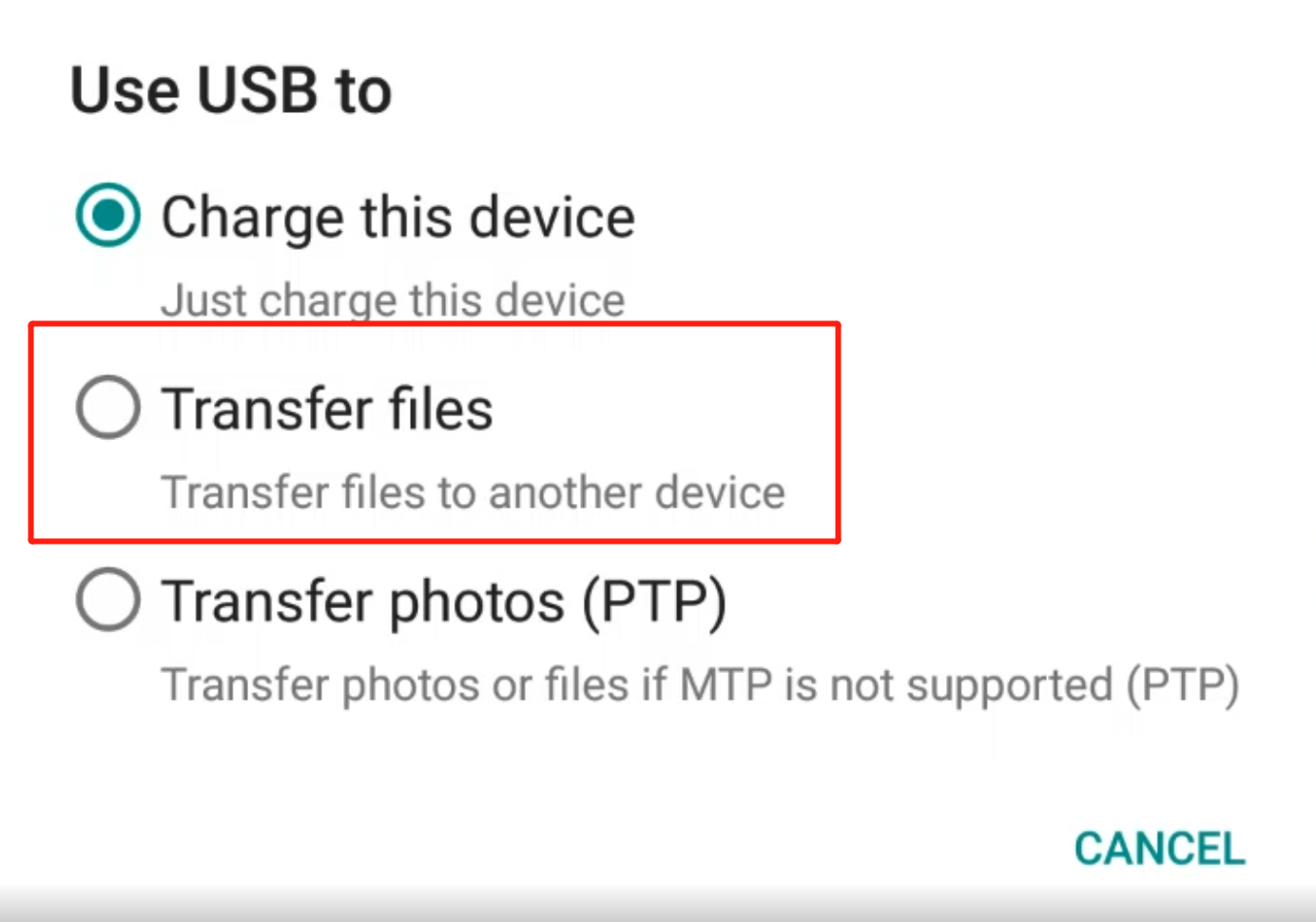
4\) Select “Transfer files”.
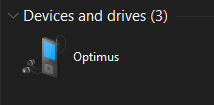
5\) The Herelink will appear on your computer as a device named “Optimus”.
6\) Upload flight plans into the following folder: Optimus > Internal shared storage > Documents > Auterion Mission Control > Missions
{% hint style="info" %}
If you aren't seeing the files you're expecting on the Herelink or computer, restart the Herelink.
{% endhint %}
### Method 2: Micro SD card (supports maximum 64GB)
1\) Upload flight plans onto the MicroSD card.
2\) Insert Micro SD card into the Herelink’s Micro SD Card slot.
3\) Drag down from the top to open the drop-down menu and select the Micro SD card device.
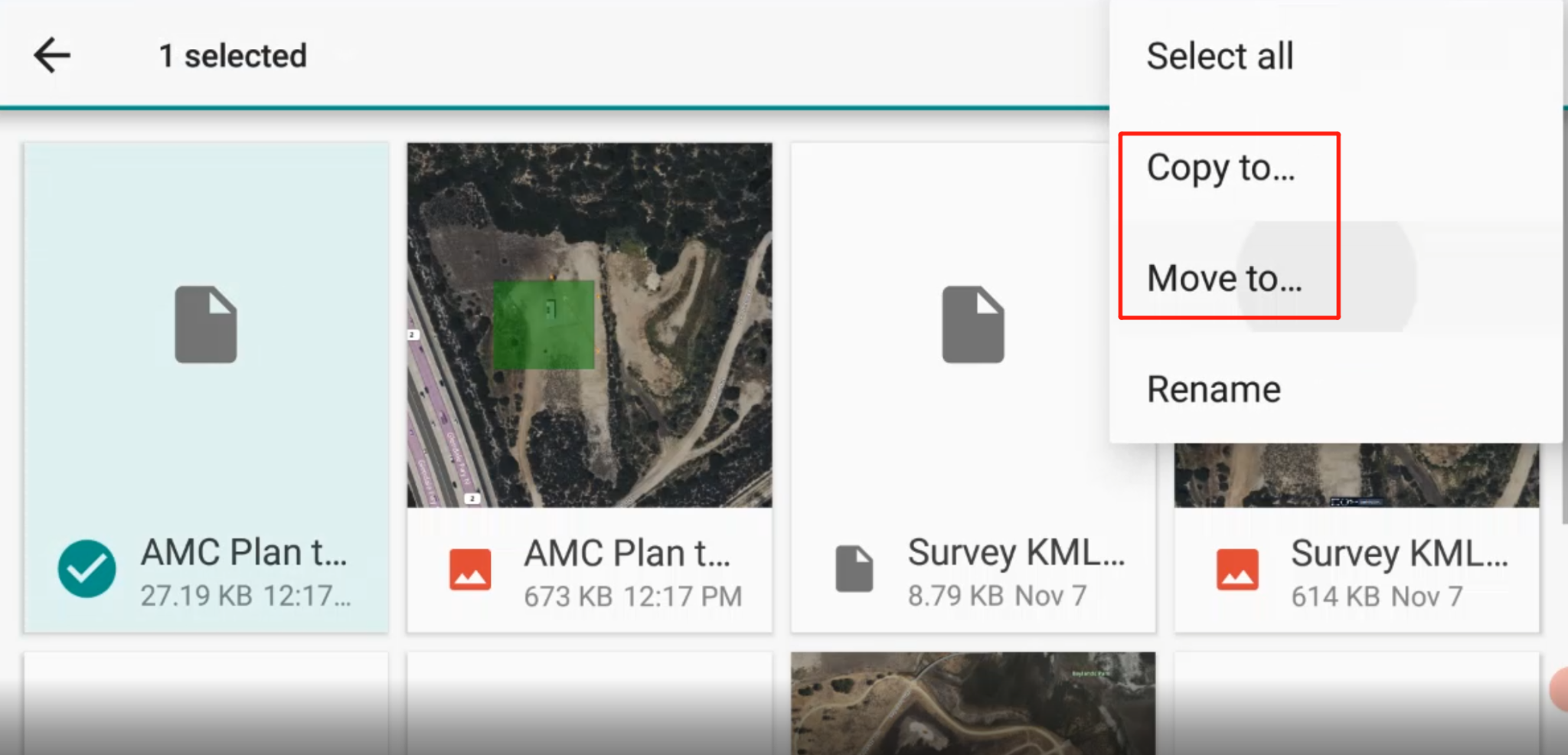
4\) Select the desired flight plan and select “Copy to…” or “Move to…”
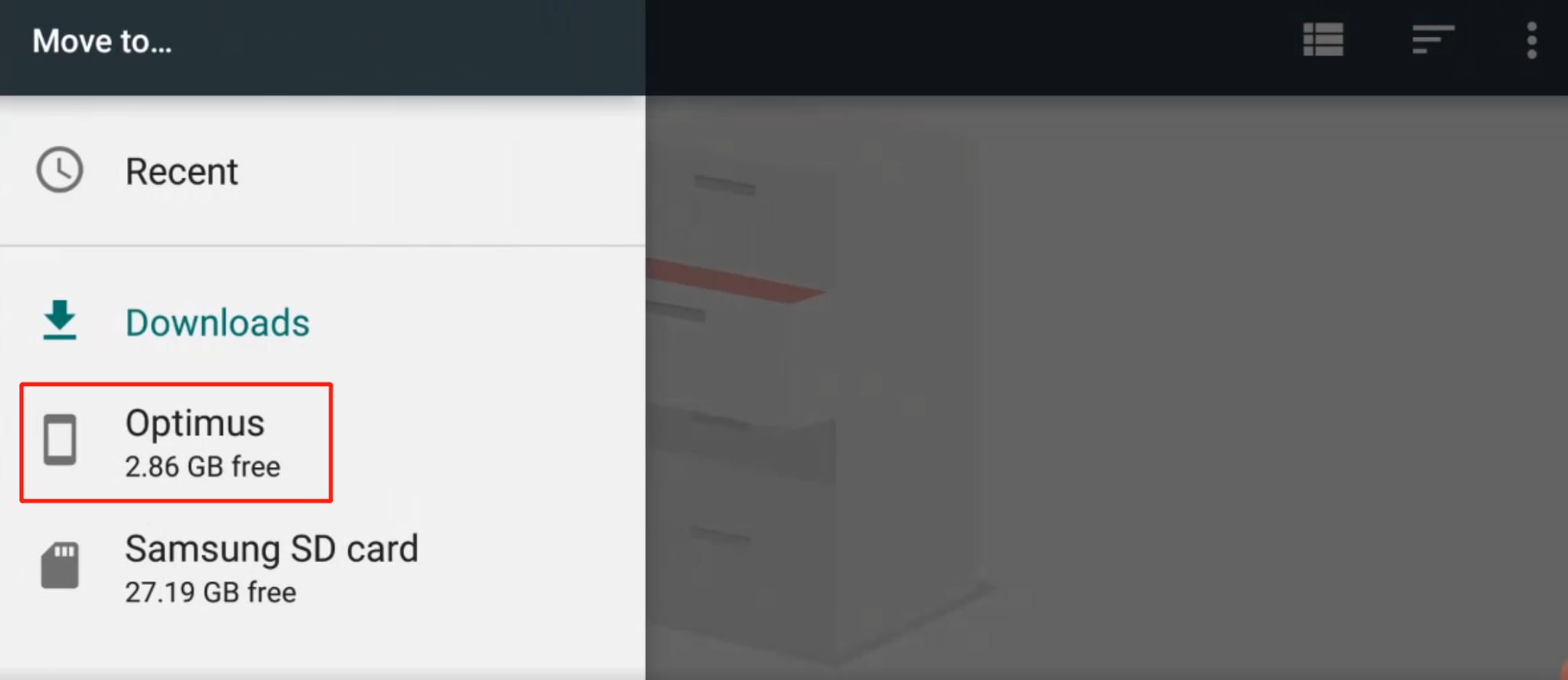
5\) Select Optimus > Documents > Auterion Mission Control > Missions.
6\) Select “Copy” or “Move” to complete transferring.
---
# Agent Instructions
This documentation is published with GitBook. GitBook is the documentation platform designed so that both humans and AI agents can read, navigate, and reason over technical content effectively. Learn more at gitbook.com.
## Querying This Documentation
If you need additional information that is not directly available in this page, you can query the documentation by asking a question.
Perform an HTTP GET request on the following URL with the `ask` and `goal` query parameters:
```
GET https://docs.freeflysystems.com/astro/pilots-operating-handbook/essential-software/auterion-mission-control/amc-plan/transfer-mission-plan-and-kml-files-with-herelink.md?ask=&goal=
```
`ask` is the immediate question: it should be specific, self-contained, and written in natural language.
`goal` is what the user is ultimately trying to achieve, the reason they need the answer. Sharing it helps GitBook give you a better, more relevant answer. A goal is most helpful when it describes the outcome the user wants rather than restating the question. For example, with `ask=how do I create an API token`, a goal like `automate deployments from our CI pipeline` lets GitBook tailor the answer to that use case.
The response will contain a direct answer to the question and relevant excerpts and sources from the documentation.
Use this mechanism when the answer is not explicitly present in the current page, you need clarification or additional context, or you want to retrieve related documentation sections.