> For the complete documentation index, see [llms.txt](https://docs.freeflysystems.com/llms.txt). Markdown versions of documentation pages are available by appending `.md` to page URLs; this page is available as [Markdown](https://docs.freeflysystems.com/astro/other-user-manuals/ecosystem/esri-arcgis-flight-site-scan/1-setup-and-connecting-to-astro.md).
# 1 - Setup and Connecting to Astro
This quick tutorial will walk you through how to setup ArcGIS Flight (formerly Site Scan) with your Astro
{% tabs %}
{% tab title="Astro with Pilot Pro" %}
Things you need:
* Astro
* Pilot Pro with Herelink / Doodle Labs
* iPad w/ ArcGIS Flight installed
* Ethernet Cable
* Ethernet adapter (Lightning or USB-C depending on your iPad)
{% hint style="info" %}
If using a Doodle Labs radio, you will need to[ enable the RJ45 ethernet port ](https://freefly.gitbook.io/pilot-pro-public/operating-handbook/radio-modules/doodle-labs-radio-module/doodle-rj45-ethernet-port)on the back of the module
{% endhint %}
{% hint style="info" %}
Blue Astros do not have GPS tagging enabled in logs and will not generate PPK files. If you would like to PPK your imagery with a Blue Astro, you will need to [change your logging mode](https://freefly.gitbook.io/astro-public/other-user-manuals/ecosystem/diu-blue-suas#logging)
{% endhint %}
## Setting up Hardware Connections
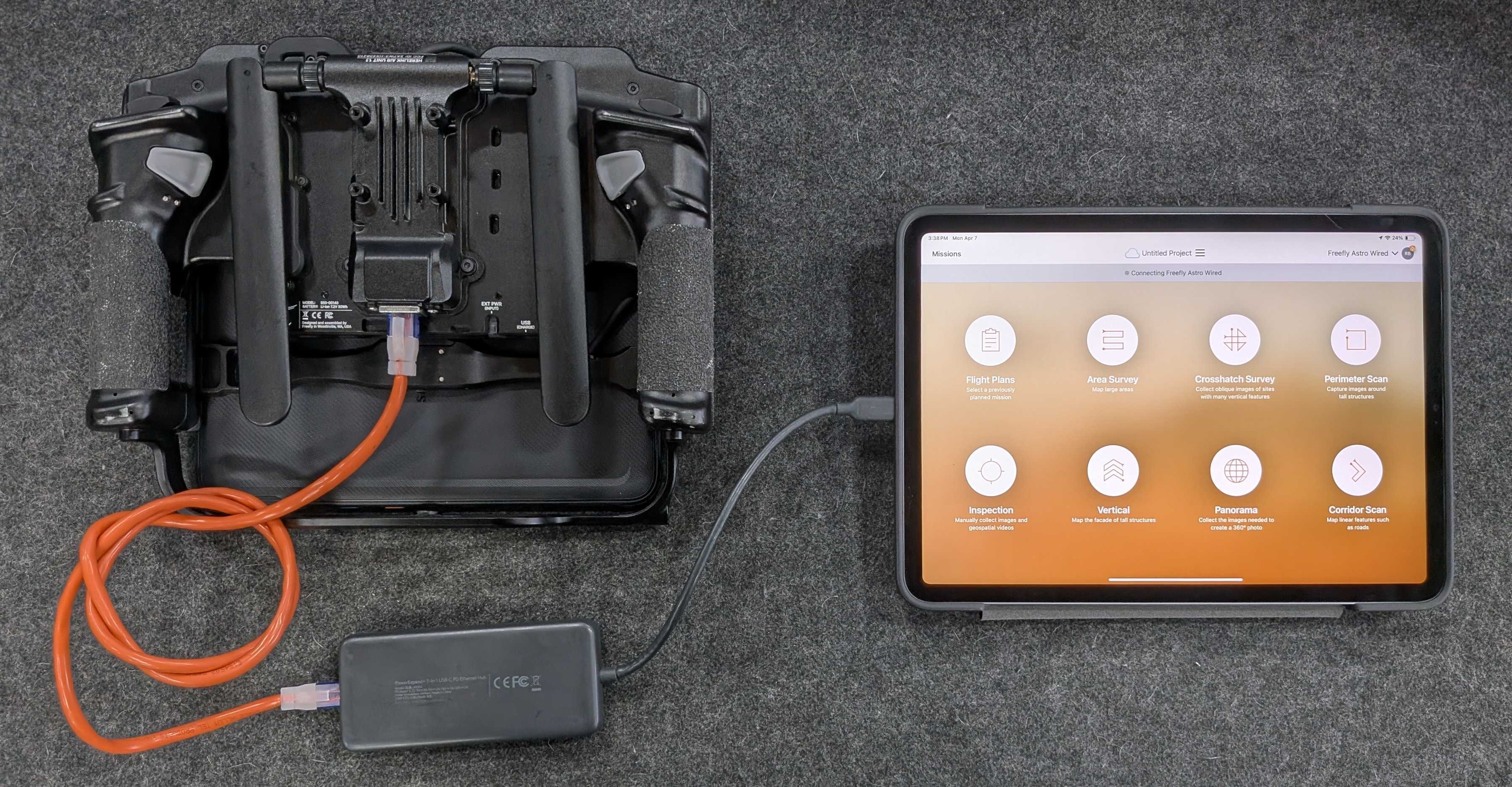
Connect the Pilot Pro to your iPad via an Ethernet adapter
## Setup iPad Networking
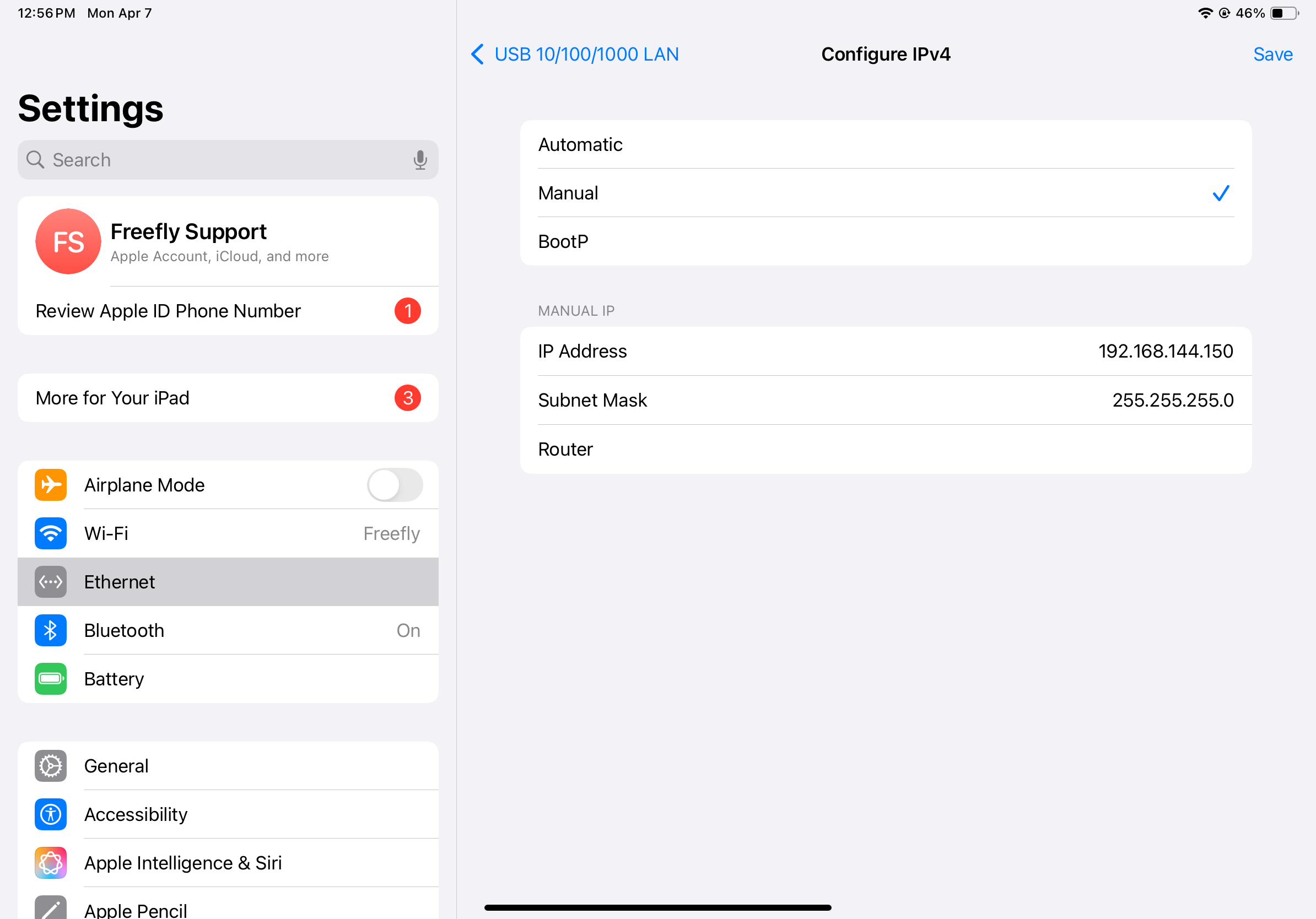
Go to the iPad's settings, navigate to Ethernet, and then choose your adapter to get to the IP configuration.
On the iPad, configure the IPv4 address to a manual IP with the following settings:
* IP: 192.168.144.150
* Subnet mask: 255.255.255.0
iPad Ethernet Configuration
## Configure ArcGIS Flight
Open ArcGIS Flight and allow permissions as it asks for them:
{% hint style="warning" %}
If you don't give Network Permissions, ArcGIS Flight will not be able to find the Astro
{% endhint %}
### Fixing Network Permissions
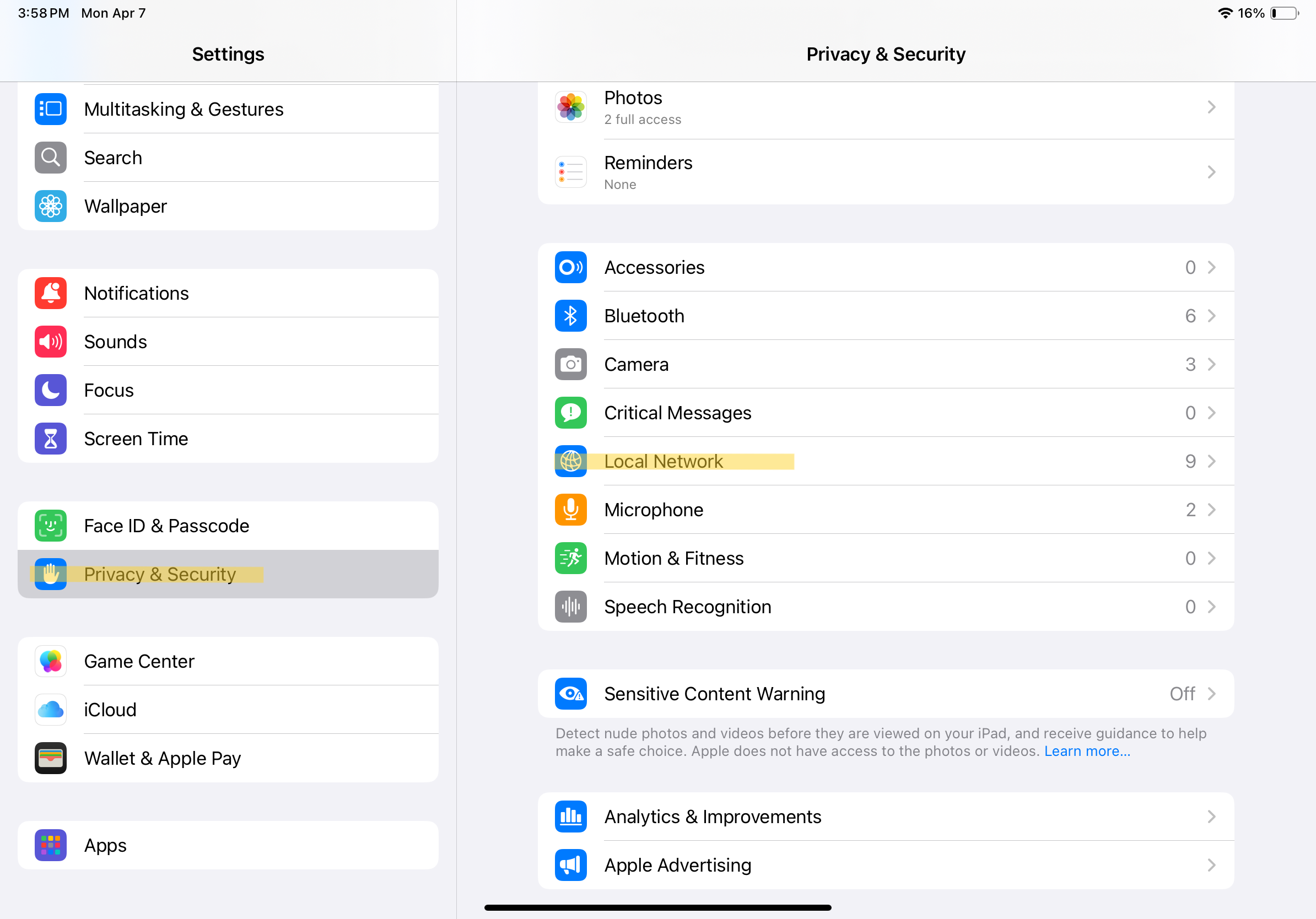
The Astro communicates to the iPad via it's configured network. If you did not grant local network permissions during the permission pop-up, then you will need to enable ArcGIS Flight manually under "Privacy & Security > Local Network"
iPad Local Network Permissions
### Connecting the Astro
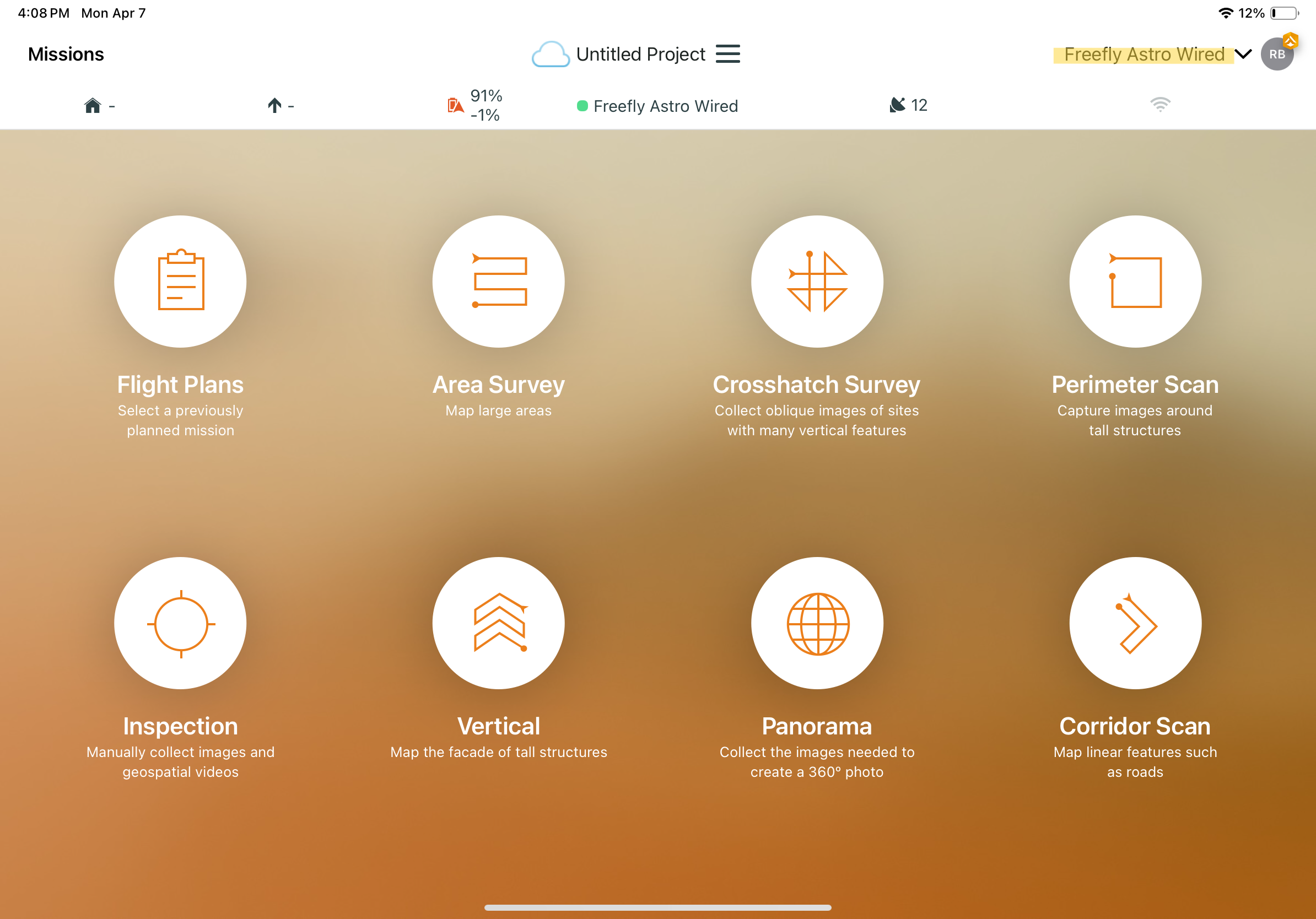
Make sure that you have "Freefly Astro Wired" Selected as the vehicle in the top right corner of ArcGIS Flight.
Configure ArcGIS Flight for the Astro
If you don't have the Astro connect, please try to choose another vehicle and then re-choose "Freefly Astro Wired". If it still doesn't work, please try to close out of ArcGIS Flight and reopening
{% endtab %}
{% tab title="Astro with Herelink Controller (Legacy)" %}
{% embed url="" %}
Configuring Site Scan to connect to the Astro with Herelink Controller
{% endembed %}
{% endtab %}
{% endtabs %}
---
# Agent Instructions
This documentation is published with GitBook. GitBook is the documentation platform designed so that both humans and AI agents can read, navigate, and reason over technical content effectively. Learn more at gitbook.com.
## Querying This Documentation
If you need additional information that is not directly available in this page, you can query the documentation dynamically by asking a question.
Perform an HTTP GET request on the current page URL with the `ask` query parameter, and the optional `goal` query parameter:
```
GET https://docs.freeflysystems.com/astro/other-user-manuals/ecosystem/esri-arcgis-flight-site-scan/1-setup-and-connecting-to-astro.md?ask=&goal=
```
`ask` is the immediate question: it should be specific, self-contained, and written in natural language.
`goal` is optional and describes the broader end goal you are ultimately trying to accomplish on behalf of the user. GitBook uses it to tailor the answer towards what is most useful for that goal.
The response will contain a direct answer to the question and relevant excerpts and sources from the documentation.
Use this mechanism when the answer is not explicitly present in the current page, you need clarification or additional context, or you want to retrieve related documentation sections.