> For the complete documentation index, see [llms.txt](https://docs.freeflysystems.com/llms.txt). Markdown versions of documentation pages are available by appending `.md` to page URLs; this page is available as [Markdown](https://docs.freeflysystems.com/alta-x-gen2/maintenance/troubleshooting.md).
# FAQ & Troubleshooting
## Troubleshooting
### Only one battery detected
If you have two batteries connected to Alta X Gen2 but are only seeing one battery in AMC:
* Check that both batteries are on. If one of the batteries doesn't have any LEDs lit up, try pressing the button on the battery to wake it.
* Verify that you are in smart battery mode. See the [Battery page](/alta-x-gen2/other-user-manuals/ecosystem/batteries-and-charging.md#switching-battery-modes) for instructions on changing battery mode.
* Dual battery display in AMC is only supported when smart battery mode is enabled.
### LTE not connecting
If you’re having trouble with LTE connectivity, here’s a few things to check:
* With Alta X Gen2 powered on and connected to AMC via Pilot Pro or a computer, check the LTE status in the dropdown.
* Ensure you’ve installed the SIM card properly.
* Check the APN and roaming settings under the Vehicle Overview -> Connectivity -> LTE menu in AMC.
* If you’re in an area with spotty coverage, try moving outside and away from large buildings.
### WiFi not connecting
* With Alta X Gen2 powered on and connected to AMC via Pilot Pro or a computer, check the WiFi status in the vehicle connectivity -> Connectivity -> Wi-Fi menu.
* Verify in the Wi-Fi tab that the button is on.
* Press the scan icon to search for network.
* Try moving Alta X Gen2 closer to the router or access point.
* Note that when RemoteID is enabled, WiFi's mode switches to serve RemoteID. It is a manual process for the pilot to switch the WiFi's mode to internet connectivity when not flying.
{% hint style="info" %}
5.8GHz WiFi networks have better performance due to less radio interference from the onboard RF
{% endhint %}
### Pilot Pro not connecting (rebind controller)
**For Alta X Gen2 with Herelink radio:**
* Prepare tweezers or paperclip.
* Power on Alta X Gen2 with one battery and the fused cable.
* Turn on Pilot Pro.
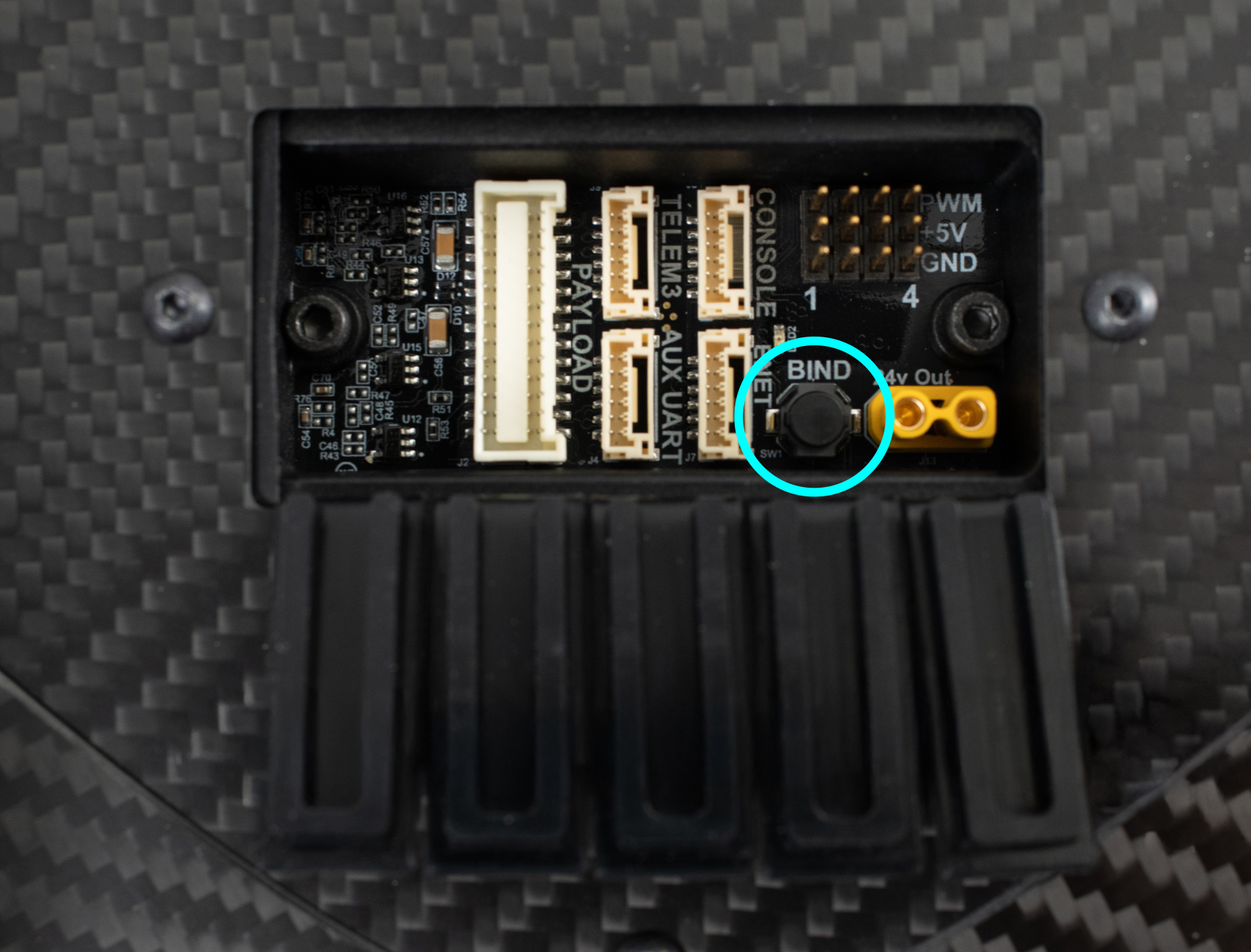
* Wait 30 seconds for the drone to power on, then press the pairing button on the IO panel five times quickly. (The IO panel is located on the bottom side of the aircraft near the nose).
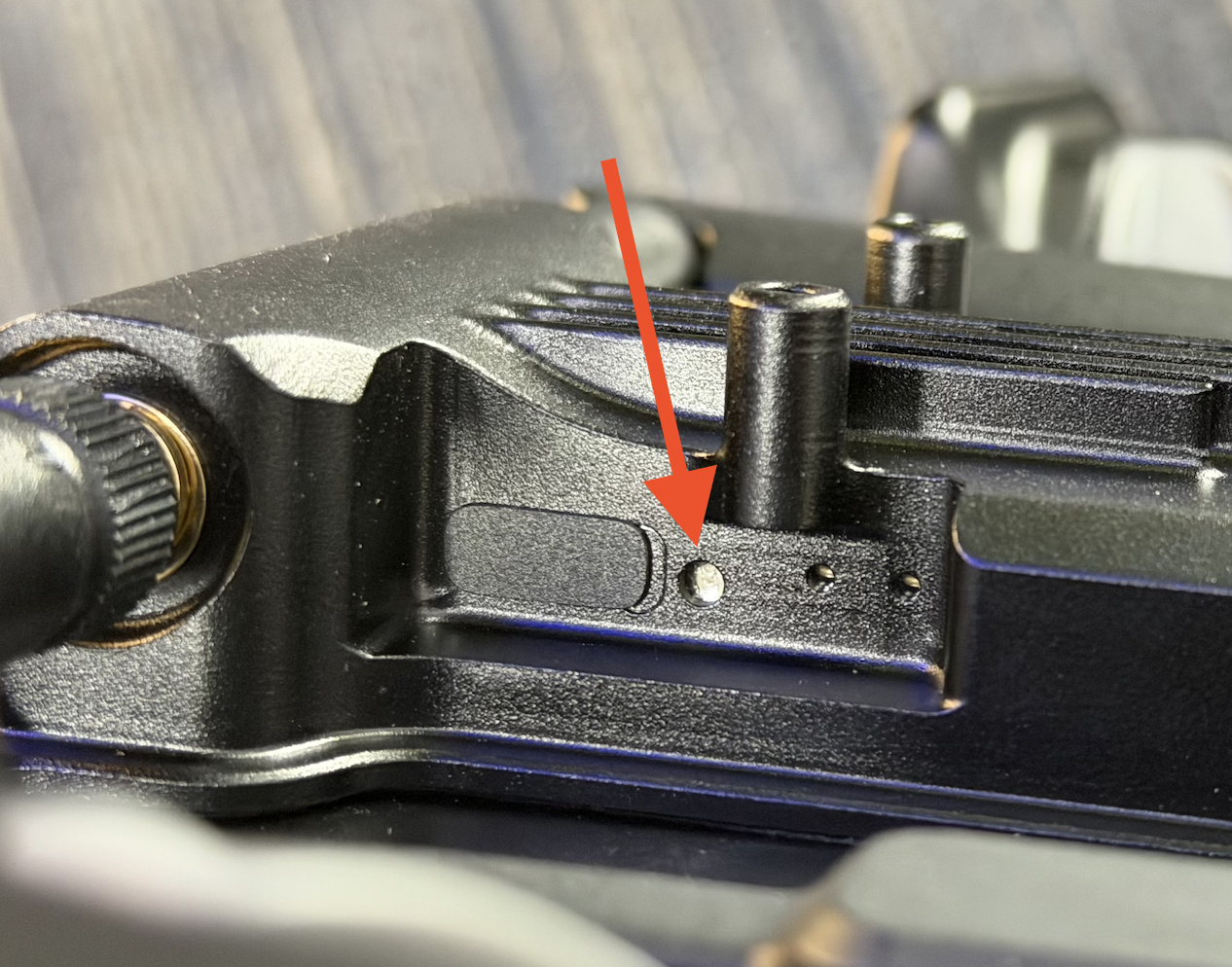
* On the Pilot Pro side, locate the pairing button on the Herelink radio. Using tweezers, press and hold the Herelink Air Unit's "Pair/Reset" button until LED blinks (hold approximately 3 seconds).
* Wait for Pilot Pro and Alta X Gen2 to pair. Once paired, Pilot Pro's power button LED should turn green.
**For Alta X Gen2 with Doodle Labs radio:**
* Make sure Alta X Gen2 and Pilot Pro are at least 6-10’ apart. The Doodle Labs radios are powerful and may interfere with each other at close range.
* Power on Alta X Gen2 with one battery and the fused cable.
* Power on Pilot Pro.
* Give it time. Each radio takes about 60 seconds from power-up to fully boot its system. Ensure both the air and ground radios have been powered on for at least 60 seconds before checking connectivity.
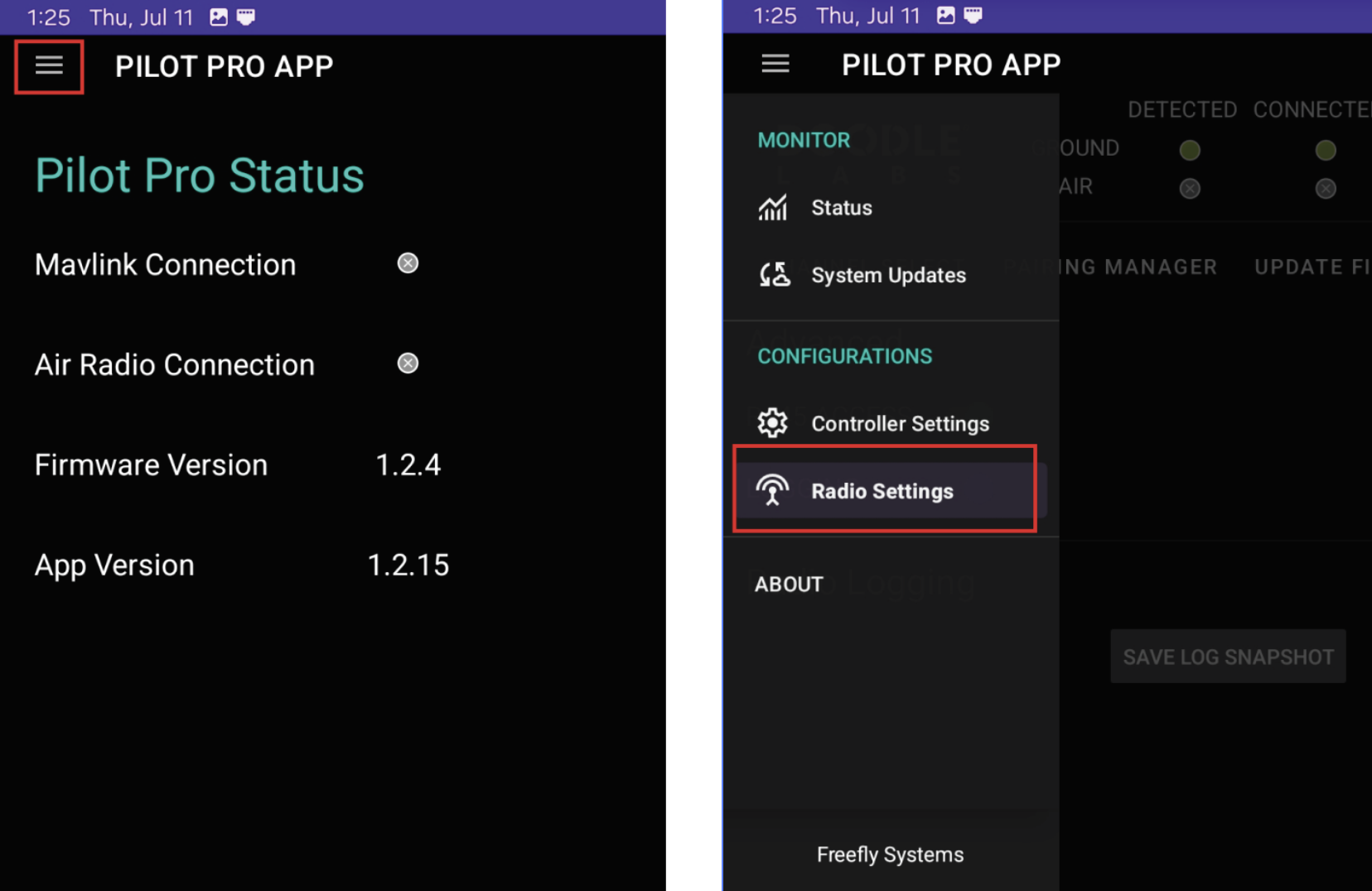
* Open the Pilot Pro App and open the side menu. Navigate to "Radio Settings". Then open "Pairing Manager".
* Locate and press the binding button on the IO panel five times quickly. (The IO panel is located on the bottom side of the aircraft near the nose).
* Wait for 30 seconds for the radio to go into pairing mode, then press “Scan” on Pilot Pro App.
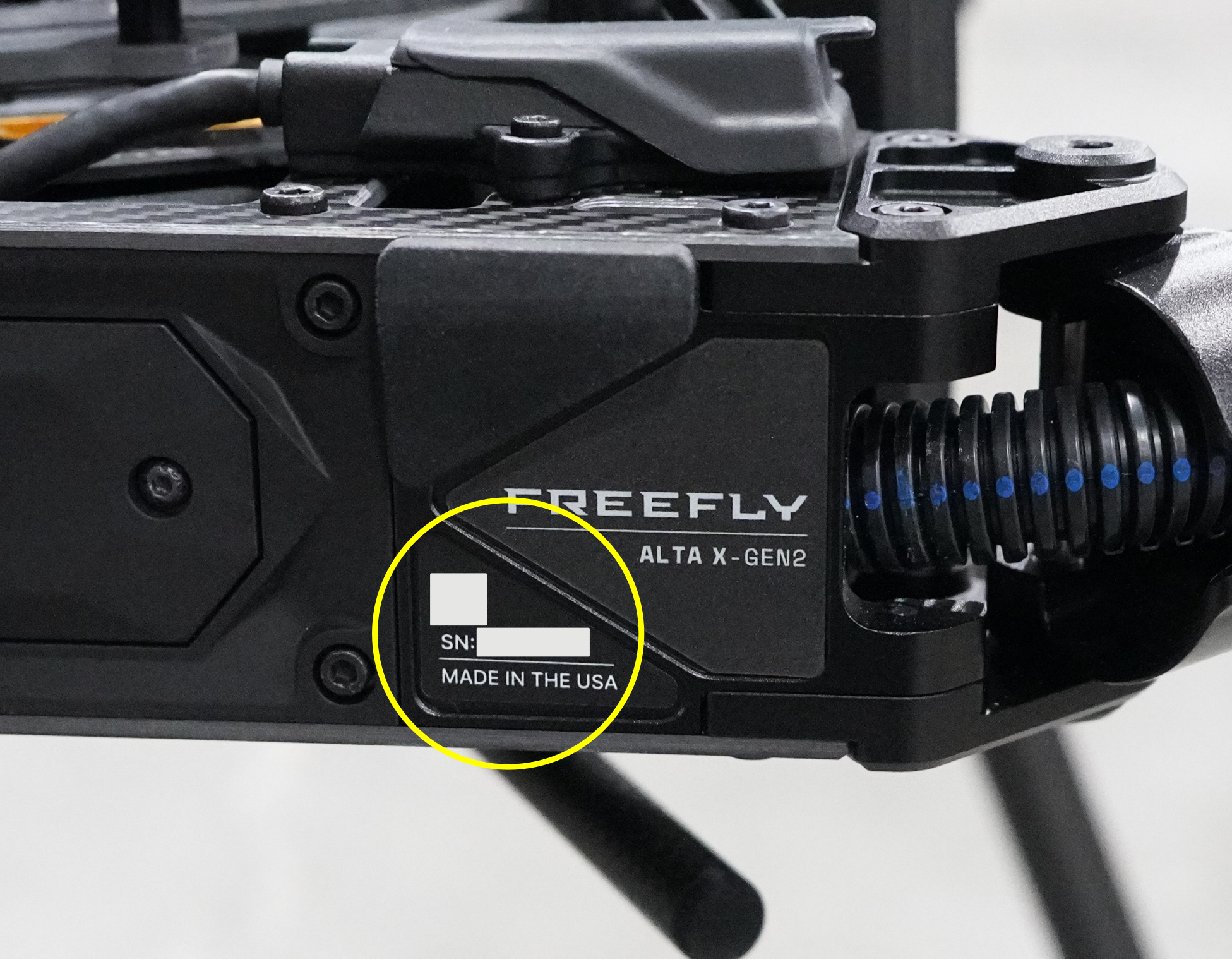
* From the list of results, find the one that matches Alta X Gen2's serial number. Then press pair.
* Wait 60 seconds for process to complete.
## FAQ
#### Does Alta X Gen2 have dual GNSS heading?
* Alta X Gen2 ships with dual onboard F9P GNSS receivers. This currently enables redundancy in case of a single module failure. A future software update will enable dual GNSS aided heading estimation for better performance in degraded conditions.
#### Does Alta X Gen2 support terrain following?
* Auterion Mission Control has [Digital Elevation/Terrain Model (DEM)](https://www.earthdata.nasa.gov/topics/land-surface/digital-elevation-terrain-model-dem) built into its mission planning features that allow Alta X Gen2 to utilize terrain following during missions.
* Alta X Gen2 also includes sensors (laser range finder) to support terrain following, but it is not currently supported in software. We plan to include support for it in a future release.
#### What power is available onboard?
* Alta X Gen2 includes connectors for unregulated battery power, and regulated 12V and 24V power.
* Accessory battery power is fused at 10A.
* 12V power is limited to 10A (120W).
* 24V power is limited to 6.25A (150W).
#### Can I use other batteries with Alta X Gen2?
* Yes, but this requires parameter changes. Alta X Gen2 is designed to use the recommended smart batteries, as these are the most heavily tested and they enable more accurate battery state of charge measurement, but it can be configured to operate on other batteries.
* Note: changing battery modes disables single battery arming prevention. Always use a fused power cable with one battery when powering the aircraft on the ground or bench.
* To use XT90 batteries with Alta X Gen2, we offer adapter cables. Contact [Support](https://freeflysystems.com/support) to purchase these.
* To change battery modes, see [here](/alta-x-gen2/other-user-manuals/ecosystem/batteries-and-charging.md#switching-battery-modes).
#### Does Alta X Gen2 include an FPV camera?
* Yes, all variants of Alta X Gen2 include a forward facing NDAA compliant digital FPV camera that streams into AMC on Pilot Pro.
#### Can I use multiple Smart Dovetail payloads?
* Skynode on Alta X Gen2 only supports interfacing to one Smart Dovetail payload at a time. Alta X Gen2 can support multiple payloads if only one is using the Smart Dovetail interface and the others are passive or power only.
#### What’s the max flight time?
* Alta X Gen2’s flight time depends on payload and density altitude. See the performance chart here.
#### What payloads are supported on Alta X Gen2?
* Alta X Gen2 supports the same payloads as Alta X Gen1, in addition to the following Smart Dovetail payloads. We continue to test new payloads and expand the list of supported payloads.
* LR1 Payload
* Gremsy Vio Payload
* Movi Pro / Carbon
* Flux Payload integration is in the works
#### How can I get help?
* Reach out to support by emailing us at or via our [website](https://freeflysystems.com/contact). Texting or sending social messages will take longer.
* Share as much detail as possible and provide Alta X Gen2's serial number (located on the rear end of the aircraft by the battery connectors).
* Share your flight logs from the Auterion Suite.
* Include photos or videos in your contact in order to get us up to speed as quickly as possible.
* Include pilot statement and notes of any incident or details
[ ](https://freefly.gitbook.io/pilot-pro-public/operating-handbook/radio-modules/doodle-labs-radio-module/doodle-rj45-ethernet-port)
---
# Agent Instructions
This documentation is published with GitBook. GitBook is the documentation platform designed so that both humans and AI agents can read, navigate, and reason over technical content effectively. Learn more at gitbook.com.
## Querying This Documentation
If you need additional information that is not directly available in this page, you can query the documentation dynamically by asking a question.
Perform an HTTP GET request on the current page URL with the `ask` query parameter, and the optional `goal` query parameter:
```
GET https://docs.freeflysystems.com/alta-x-gen2/maintenance/troubleshooting.md?ask=&goal=
```
`ask` is the immediate question: it should be specific, self-contained, and written in natural language.
`goal` is optional and describes the broader end goal you are ultimately trying to accomplish on behalf of the user. GitBook uses it to tailor the answer towards what is most useful for that goal.
The response will contain a direct answer to the question and relevant excerpts and sources from the documentation.
Use this mechanism when the answer is not explicitly present in the current page, you need clarification or additional context, or you want to retrieve related documentation sections.